SClip manual
Everything about SClip on one page. Print it or save it as a PDF, or jump to the FAQ if something is not behaving.
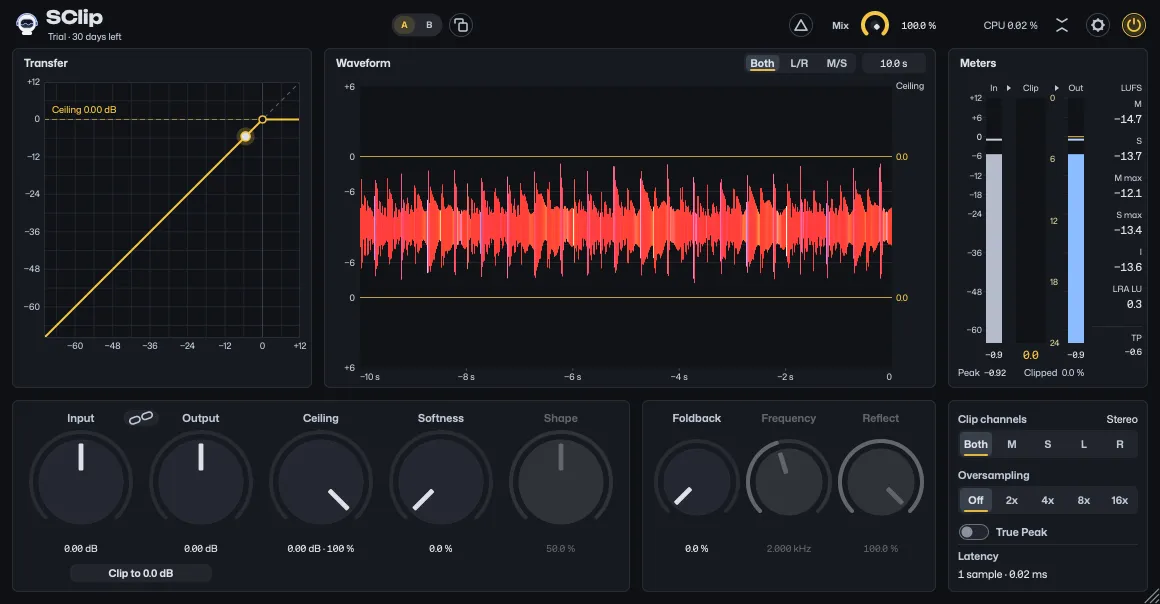
SClip is a hard clipper. We built it for one way of mixing: a clipper at 0 dBFS on every track, bus and the master. Hard clippers all do much the same to the sound, and SClip is no exception, so what we worked on is everything around the clip. You see what the clipper takes off while it happens, the picture moves at up to your display’s refresh rate, and every value can be set exactly.
If you have never used a clipper, read The basics first. If you have, skip to Getting started.
The basics
What a clipper does
Think of a low ceiling over the waveform. Every sample that would go above it is cut off flat at the ceiling, and everything under it passes as it was. Turn the signal up into that ceiling and the peaks stay where they are while the rest gets louder and denser. A clip of 1 to 3 dB is light; 6 dB and up is heavy, and you hear it as distortion.
A hard clip cuts at a sharp corner. Softness rounds that corner, so the bending starts a little under the ceiling, and Shape sets how it bends. The ceiling stays the limit either way.
Levels
- dBFS: level relative to full scale; 0 dBFS is the highest sample a file can hold. dBTP: the same scale for the peaks between the samples, the ones a DAC or an MP3/AAC encoder rebuilds.
- LUFS: a loudness scale that follows how loud something sounds, not how high its peaks are. 1 LU is 1 dB. Streaming services measure songs in LUFS, by the standard ITU-R BS.1770 sets, and turn loud ones down to their target.
- K-weighting: the filter a LUFS meter listens through. It turns the deep bass down and lifts the upper mids and highs a little, the way ears hear at normal volume, so a bass-heavy sound doesn’t read louder than it sounds.
Once every peak sits at 0 dBFS, the peak meters can’t tell you which track is louder. The loudness meters can, which is why SClip has them.
Why oversample
The sharp corners of a hard clip make harmonics higher than the sample rate can hold. They fold back down as aliasing: tones that don’t belong to the music, loudest on bright material driven hard. Oversampling clips at 2 to 16 times the sample rate, where those harmonics have room, and filters them out on the way back. It costs latency and CPU, so it is a choice, not a default (Oversampling and latency).
Getting started
Install
Install it as Install describes, which also lists what it runs on, restart your DAW and load SClip on a track. Without a key it runs as a 30-day trial; License shows how your email address and key make it yours for good.
Find the controls that matter
- Ceiling is the level nothing passes. It starts at 0 dBFS, full scale, where you want it for gain staging.
- Input drives the signal into the ceiling: the higher, the more is clipped.
- Clip to 0 sets Input for you, so the loudest peak so far lands on the ceiling. The button names that level: Clip to 0.0 dB at the default Ceiling. Hold it to learn: it does the same live while the music plays, until you click it.
The waveform shows the result: what the clipper took off is drawn faded around the output, and the Clip meter says how many dB it took.
Try this
- Put SClip on a drum bus and play the loudest bar.
- Press Clip to 0. Nothing is clipped yet: the loudest peak just touches the ceiling.
- Turn Input up 3 dB from where Clip to 0 left it. The Clip meter reads how much comes off, and the waveform shows it faded behind the output.
- Switch Delta on to hear only what was taken off, then off again.
Gain staging
The idea: a hard clipper with its ceiling at 0 dBFS on every track and bus, so nothing anywhere goes over full scale, and the levels set by loudness rather than by peaks. This is how we do it with SClip.
- Ceiling at 0 dBFS. That is the default. Leave Softness at 0 % for a hard clip, and drive Input into the ceiling rather than pulling the Ceiling down into the waveform.
- Clip to 0. Play the loudest part of the track, then press Clip to 0: Input is set so the loudest peak since the last reset lands on the ceiling, with nothing clipped yet. Or hold the button for half a second and play: it reads Learning… and follows the loudest peak until you click it.
- Drive Input. Turn Input up to clip. The peaks stay on the ceiling and the track gets louder and denser. To make a track quieter, pull its fader down; to bring it forward, drive its clipper rather than raising the fader.
- Link to try the amount. Switch on Link, the chain between Input’s and Output’s names, then push Input. What Input adds from there comes off again after the clipper, so the level stays the same and only the amount of clipping changes. Turn Input back to where it stood to hear it without the extra clipping.
- Read the loudness. Reset the meters with a click on M max, play the loudest part of a sound and read M max to compare tracks by how loud they sound. For a whole song, reset, play it through and read I.
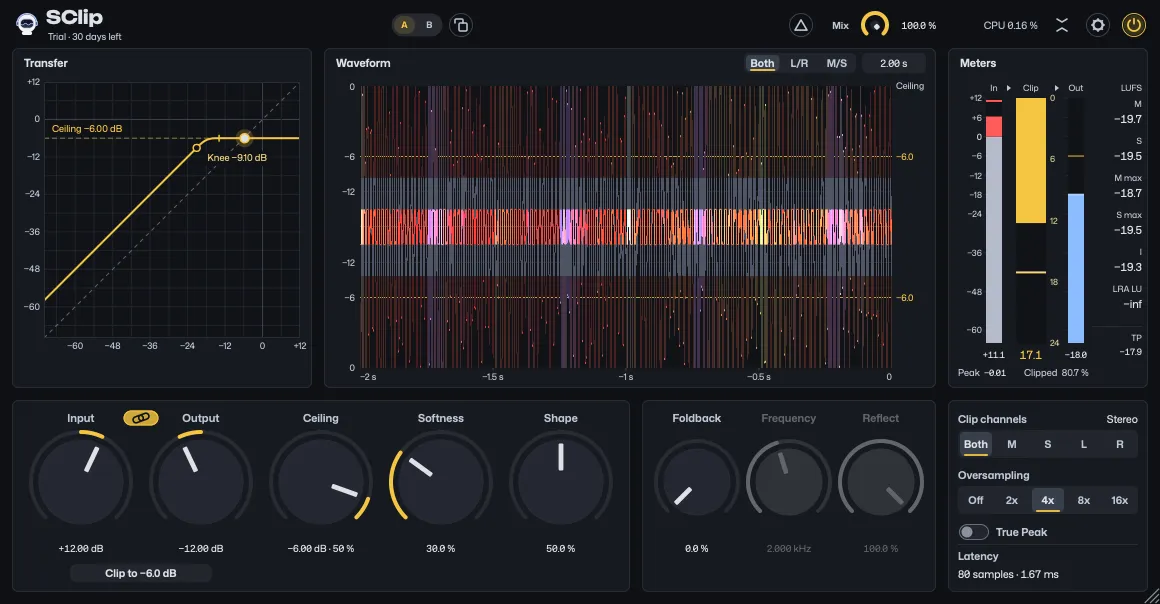
Which oversampling. Many oversampled clippers put peaks above their ceiling. SClip’s 2x to 16x hold the ceiling like Off does (The ceiling guarantee), so they suit this way of working too. Off stays the cheapest, with 1 sample of latency, for the early stages with many instances; 2x to 16x suit the buses and the master at mixdown.
Clip to 0 in detail. The button names where the peak lands, the Ceiling, and follows the Ceiling knob: Clip to 0.0 dB at the default, Clip to −6.0 dB with the Ceiling at −6 dB. Peak, in the meters under In, shows that peak’s level; click it or its label to start over. The press starts it over too, so Peak reads
−infand the button waits until something plays again, and the next press goes by what played after this one alone. Peak keeps measuring from the press. SClip measures it even while its window is closed, so you can play a song through once and then press the button on every track. With Clip channels other than Stereo it measures the part being clipped. A change of Clip channels, Oversampling or True Peak starts it over, since each changes what the press must keep under the ceiling.
What Clip to 0 measures. With Oversampling off, the loudest sample; at 2x to 16x, the loudest peak of the oversampled signal, which lies a little higher, between the samples. That peak lands on the ceiling (or 0.0001 dB under it), so after a press the clipper clips nothing in any setting; with oversampling on, the output’s samples then peak a little under the ceiling. With True Peak on, Clip to 0 also measures the peaks between the samples that True Peak holds, so after a press True Peak takes nothing off either, in every setting; the output’s true peak then lands on the ceiling where it lies above the clipper’s peak, mostly with Oversampling off. A Softness above 0 % bends that peak, since its knee starts below the ceiling.
Learn in detail. Learn starts Peak over, and while it runs the loudest peak so far sets Input so it lands on the ceiling, as a click would: the first one up or down, and from there each louder one turns Input down, never up. A shorter press is a click, which clips once. You can hold the button before anything has played, while it is grayed: a click on it then does nothing, but a hold starts Learn, which waits and learns from the first audio. Learn also stops when you take Input yourself (dragging, scrolling, typing, your DAW’s automation), when you switch Link or A/B, when Power or your DAW’s bypass goes off or the trial ends, and when you close the window, since it follows the peak from the open window. With no audio it changes nothing.
Link in detail. Switching Link on changes nothing by itself, so it fits right after Clip to 0. With Link on, the output’s peaks sit as far below the ceiling as you pushed Input; switch it off and they come back up to it. Link counts from where Input stood when you switched it on, and SClip saves that point with the project. Clip to 0 pressed with Link on sets Input as it does without Link and moves that point with it, so what Link was taking off stays off and the level Clip to 0 sets stays. When automation or your DAW’s own undo switches Link on, the point is where Input stands at that moment. Below that point Link takes nothing off: the clipper keeps working as it did there, so Input changes nothing you hear until it is back up there, the output stays under the Ceiling, and the Output knob shows Output itself. Power off plays the input as it came, so it is as loud as the linked output only where that point and Output add up to 0 dB; to compare at the same level, turn Input back to the point instead. Only where Link already takes off more than 60 dB can Clip to 0 leave Input higher than it asks, and the clipper then takes the difference off the loudest peak.
The loudness in detail. M max is the loudest moment since you last reset it, I how loud everything since the reset was, as one number, pauses left out. M and S follow the music as it plays. A click on any maximum or its label resets them all, and SClip measures the loudness and the peaks with its window closed too, so you can reset, close the window, play the song through and read the numbers when you open it again (Meters).
Recipes
Starting points with real values. Change them by ear.
Hear what the clipping does to a bus
- Press Clip to 0 on the bus, then switch on Link.
- Turn Input up 6 dB. The level stays where it was; only the clipping grows.
- Switch Delta on. You hear only what the clipper takes off, matched to the output’s height so it is easy to hear.
- Switch Delta off and turn Input back to where it stood when you switched Link on, to compare at the same loudness.
Clip only the center
- Set Clip channels to M, Mid only.
- Drive Input until the Clip meter, now named Clip M, reads 2 to 3 dB.
- Kick and bass usually sit in the center, so they get clipped, and the width passes untouched.
Mid only holds the mid at the ceiling, and the left and right channels can pass it. For a hard ceiling, use Stereo (Stereo, mid/side and one-sided clipping).
Keep the snap of a drum bus
- Set Oversampling to 2x: Foldback makes harmonics of its own.
- Drive the bus into the ceiling until it clips 3 to 6 dB.
- Turn Foldback to 100 %, with Frequency at 2 kHz and Reflect at 100 %.
- Compare at the same loudness: Foldback lowers the level by up to about 1.6 dB.
Check a master for −1 dBTP
- Set the Ceiling to −1 dB and switch True Peak on, which adds 67 samples of latency.
- Reset the meters and play the song through.
- TP under the loudness reads the highest true peak. With True Peak on it stays under the ceiling, on music within 0.1 dB.
Signal flow
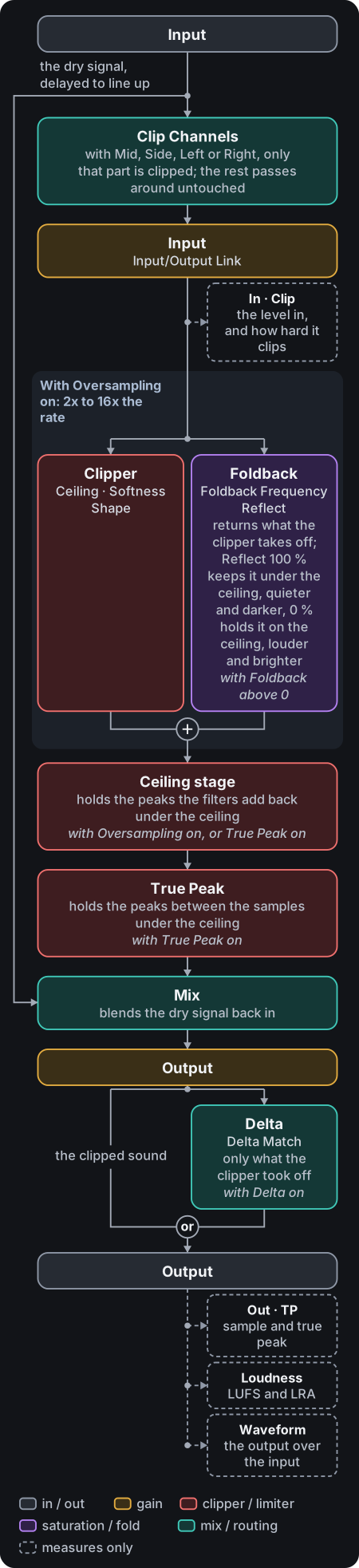
Input drives the signal into the clipper, which holds it under the Ceiling with a hard or soft knee (Softness, and Shape for its shape); Foldback can put back some of what the clipper took off, folded under the ceiling. With oversampling on, all of that runs at 2, 4, 8 or 16 times the sample rate, and a look-ahead stage holds the filters’ overshoot under the ceiling on the way back down; at Off, True Peak runs that stage too. With True Peak on, a last look-ahead stage holds the peaks between the samples under it too. Mix then blends the clipped signal with the dry input, and Output sets the level of both.
Delta replaces the output with what the clipper removed, scaled by Mix and Output and, with Delta Match on Matched, the default, raised to the output’s height; the dry share is left out. Out, TP, the loudness readings and the waveform’s front trace measure what leaves SClip, so with Delta on they measure the delta.
The dry signal is delayed by the latency, so Mix, Delta, Power and the trial’s end line up with the clipped signal sample for sample, and a change of Oversampling or True Peak dips the output for a moment instead of clicking (Oversampling and latency). With Clip channels other than Stereo, everything from Input to the ceiling works on one part of the signal alone (the mid, the side or one channel), and the rest joins it again untouched before Mix.
The header
| Control | What it does |
|---|---|
| Trial line | Under the name until a key is entered: Trial · 23 days left while the trial runs, Trial ended · Enter key once it is over, a button in the accent color; a click on it opens the Account tab. See Trial. |
| Company line | Under the name once a key is entered, in the trial line’s place: the company and the version of SClip you run, Sonaut Audio · v1.2; once a newer version is out, Version 1.3.0 available in its place, a link to SClip’s download page (Check for Updates in Settings). |
| A / B | In the middle. Two versions of your settings: click the other letter to hear it, and the copy button beside them copies the letter you hear to the other. See A/B. |
| Matched / Exact | Shown only while Delta is on: whether Delta plays the removed signal raised to the output’s height (Matched) or exactly as removed. See Delta. |
| Delta | The triangle left of Mix plays only what the clipper removes, raised to the output’s height by default so it is easy to hear. See Delta. |
| Mix | The clipped signal against the dry input, with its value beside the knob. See Main controls. |
| CPU | Left of the two arrows: how much of one core this SClip’s audio processing takes, with two decimals (CPU 0.07 %). It grows with oversampling. See the tip below and Performance. |
| Two arrows | Switches to the compact view, which hides the transfer graph and the waveform to save power, and back. |
| Gear | Left of Power: opens Settings, with the tooltips and scrolling, and the Account tab where SClip is activated. |
| Power | In the top right corner. Switches SClip off inside: it passes the input through, delayed by the latency, with a 5 ms crossfade, and costs almost no CPU while off. See the tip below. |
CPU. It is measured while the window is open, the meters included; drawing the window is not part of it. It is usually a fraction of a percent. It changes at most twice a second while something in the window moves, and once more half a second after the window goes still. It reads
CPU –while your DAW does not run SClip at all, as many DAWs do once they stop, and the number comes back once they run it again. Silence counts as audio, so a DAW that keeps its plugins running while stopped keeps the number.
Power. While your DAW bypasses SClip, Power shows as off and is locked until the bypass ends; your DAW’s bypass takes the same crossfade. After the trial Power shows as off and is locked until you enter your key. While Power shows as off, for any of these, the transfer graph, the waveform and the meters dim and hold still, so nothing looks clipped while nothing is; they come back, up to date, when Power is on again.
The gear is SClip’s one menu of its own, and a right-click on a display does nothing: every other choice sits on the part it changes (Switches). A right-click on a knob or on a switch that is a parameter (Link, True Peak, Oversampling, Clip channels, Matched / Exact) opens your DAW’s menu for it (Main controls).
Main controls
| Control | Range | What it does |
|---|---|---|
| Input | −64 – +64 dB | Gain before the clipper: how hard the signal is driven into the ceiling. |
| Output | −64 – +64 dB | Gain after the clipper, on the clipped and the dry signal together. With Link on, the knob shows the effective output, the gain that actually applies. See the tip below. |
| Ceiling | −64 – 0 dBFS | The level the clipped signal never exceeds. Its readout shows it in dBFS and as a percentage, its share of full scale (−6.00 dB · 50 %, two digits of the share: −30.00 dB · 3.2 %), and takes either typed in (50%); your DAW shows the dB alone. |
| Softness | 0 – 100 % | The knee. At 0 % it is a hard clip; higher values start rounding the peaks further below the ceiling, which stays the limit. The graph marks where the knee starts. |
| Shape | 0 – 100 % | The knee’s shape, with Softness setting where it starts. Lower holds the level longer and bends late and sharp; higher bends early and lands on the ceiling gently, further up. 50 % is the classic knee, and at Softness 0 % Shape does nothing and is grayed out, but you can still set it. |
| Mix | 0 – 100 % | In the header, right of Delta: the clipped signal against the dry input. Below 100 % the dry peaks can pass the ceiling. |
| Link | on / off | The chain between Input’s and Output’s names: what Input adds from where it stood when you switched Link on comes off again after the clipper. See Gain staging. |
| Clip to 0 | button | Sets Input so the loudest peak the clipper has seen since the last reset lands on the Ceiling, and resets Peak. Grayed out until something above −100 dBFS has played, after a press too; a click on it then does nothing, but a hold still starts Learn. The button names the Ceiling to a tenth of a dB. |
| Learn | hold Clip to 0 | Hold Clip to 0 for half a second, even while it is grayed: while Learn runs, the loudest peak so far, or a lower Ceiling, sets Input so it lands on the Ceiling, and the button reads Learning…. A click on it stops it. See the tip below. |
| Peak | readout | In the meters, under In: that loudest peak, measured before Input, with the window closed too; −inf while there is nothing to clip to. Click it or its label to reset. See the tip below. |
Output with Link on. The effective output is Output less how far Input has risen since you switched Link on, so it turns along with Input, under automation too, and the Link chip shows Link is on. Dragging, scrolling, typing and a double-click still set Output itself: a drag or a typed value puts the effective output where you put it, and a double-click sets Output back to 0 dB. Past the knob’s range its dial stops at the end while the readout keeps the exact value. With Input below that point, where Link takes nothing off, the knob shows Output itself. While Link takes something off and Output sits at −64 or +64 dB,
Output at its limitshows right of Clip to 0: the effective output can go no further that way, and a value typed past it stops there; its tooltip says how much Link takes off.
Learn. Learn starts Peak over. The first peak moves Input up or down, and from there each louder one, or a lower Ceiling, turns Input down, never up, and Peak follows. It also stops when you take Input (a drag, the wheel, typing, your DAW’s automation), at a click on Link or on A/B, when Power or your DAW’s bypass goes off or the trial ends, or when the window closes. Hold it before any audio and it waits for the first. The whole pass is one edit for your DAW, which can record it as automation. Learn is not a parameter: it is saved nowhere. Screen readers start and stop it with the button’s menu action (VoiceOver’s Show Menu).
Peak. It measures the input’s samples with Oversampling off, the oversampled signal’s at 2x to 16x, and with True Peak on the peaks between the samples that True Peak holds. A press of Clip to 0 resets it too, so the next press goes by what plays after it, and a change of Clip channels, Oversampling or True Peak starts it over.
Every knob starts neutral: Input and Output at 0 dB, Ceiling at 0 dBFS, Softness 0 %, Shape 50 %, Mix 100 %, Foldback 0 % (with Frequency at 2 kHz and Reflect at 100 %, ready for it). Oversampling starts Off, True Peak off and Clip channels on Stereo, Link and Delta start off, with the matched delta, and Power on. Knob moves and automation are smoothed over 25 ms and every switch crossfades, so nothing clicks or zippers.
Right-click a knob or a switch that is a parameter (Link, True Peak, Oversampling, Clip channels, Matched / Exact) for your DAW’s menu for its parameter, where your DAW offers one for VST3 plugins: in FL Studio, Create automation clip and Link to controller; Cubase, Reaper, Bitwig and Studio One show their own automation items. The CLAP and the AU have no such menu: there a right-click on a knob does nothing, and one on a switch switches it as a click does. Delta, Power and the waveform’s lanes and Scroll / Scope switches are not parameters, so a right-click on them switches them as a click does, in every format. The waveform keeps moving under a menu.
VST is a registered trademark of Steinberg Media Technologies GmbH.
Foldback
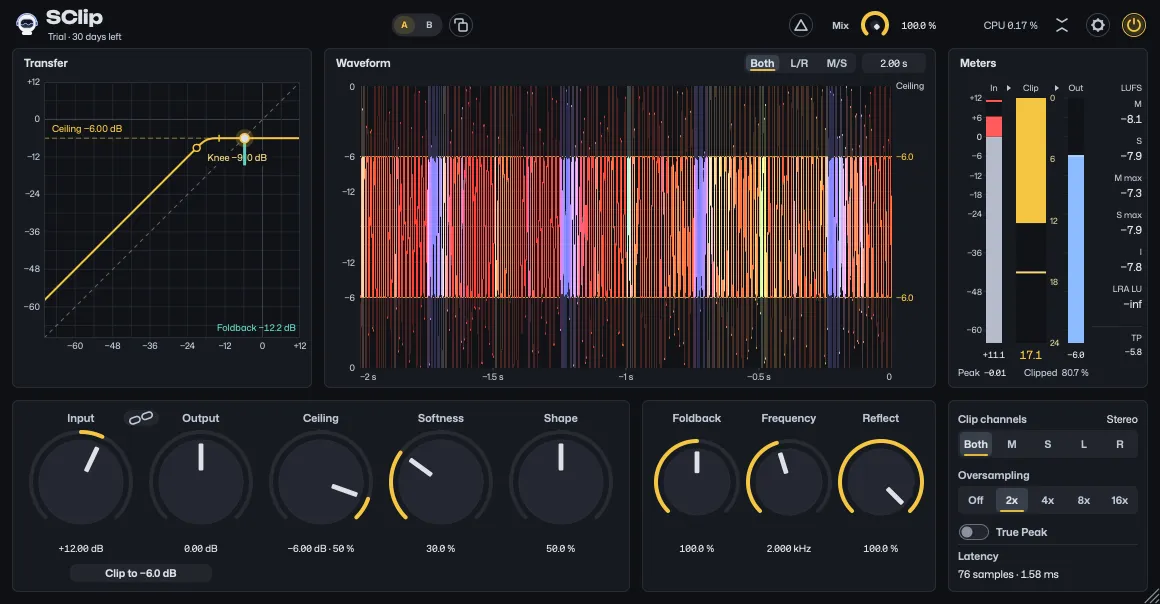
A clipper cuts off the tips of a drum’s transients, and with them some of its snap. Foldback brings back the high band of what the clipper cuts off (above Frequency) and folds it back under the ceiling, as a wavefolder does. At 0 % the stage does not run at all, so it changes nothing and costs nothing.
| Control | Range | What it does |
|---|---|---|
| Foldback | 0 – 200 % | How much of the removed high band comes back. |
| Frequency | 500 Hz – 12 kHz | Where that band starts: what the clipper removes above it comes back. |
| Reflect | 0 – 100 % | How the detail that comes back meets the ceiling. At 100 % it reflects back under the ceiling: quieter, grittier and darker. At 0 % it is held flat on the ceiling: louder, cleaner and brighter. See the tip below. |
Reflect. At 100 % the detail has harmonics of its own and less of it comes back above Frequency, so it is darker. At 0 % it has less aliasing and more of it comes back above Frequency, so it is brighter. Values between reflect it partway.
If Foldback seems to do nothing, there are two reasons. It acts only on what SClip clips: where nothing reaches the knee it changes nothing, so drive the signal into the Ceiling. And it lowers the level slightly, up to about 1.6 dB, which can hide what it brings back: compare at the same loudness.
Frequency and Reflect are grayed out while Foldback is at 0 %, and can still be set ahead. Foldback makes harmonics of its own, so it wants 2x oversampling or more; with Oversampling off, the line under Foldback’s knobs says so. While Foldback runs, the transfer graph hangs a bar from the ceiling as deep as it reflects the detail under the ceiling, with the depth in its corner (Foldback −12.2 dB). With Reflect at 0 % the detail is held on the ceiling, so no bar shows, even while Foldback works.
Try this: on a drum bus at 2x, clipping about 4 dB, set Frequency to 2 kHz and Reflect to 100 %, then sweep Foldback from 0 to 100 % and listen to the hats and the snare’s crack.
Oversampling and latency
| Setting | At 48 kHz | At 44.1 kHz | From 88.2 kHz up |
|---|---|---|---|
| Off | 1 sample, 0.02 ms | 1 sample, 0.02 ms | 1 sample |
| 2x | 76 samples, 1.58 ms | 76 samples, 1.72 ms | 61 samples |
| 4x | 80 samples, 1.67 ms | 99 samples, 2.24 ms | 65 samples |
| 8x | 81 samples, 1.69 ms | 101 samples, 2.29 ms | 66 samples |
| 16x | 83 samples, 1.73 ms | 103 samples, 2.34 ms | 68 samples |
| With True Peak on | 67 samples more (112 at Off), 1.40 ms more (2.33 at Off) | 67 samples more (112 at Off), 1.52 ms more (2.54 at Off) | 67 samples more (97 at Off) |
A hard clip’s corners make aliasing (Why oversample): inharmonic tones, loudest on bright, high material driven hard. Off rounds the corners instead (a method called polyBLAMP), one sample late; on light clipping, up to 3 dB over the ceiling, it is the plain clip, which is already clean there. 2x, 4x, 8x and 16x clip at that multiple of the sample rate, through linear-phase half-band filters that keep the waveform’s shape, and then a look-ahead stage holds the filters’ overshoot under the ceiling without a second hard clip.
- When to use it. Off suits the light clipping of a clipper on every track. Take 2x or more when you drive hard, on bright material and with Foldback; 8x and 16x give the cleanest top end, on a bus or the master; 16x takes another 7 to 13 dB of aliasing off at 44.1 and 48 kHz, for more CPU. Each step costs more CPU (Performance).
- Drums. Off with True Peak off has no filter and reaches at most one sample ahead of a hit. The other settings reach further ahead, within the latency they add: the linear-phase filters of 2x and up ring faintly just before a sharp hit, near the top of the audio band, and the look-ahead stages, at 2x and up and with True Peak on, start lowering a peak a little before it. If a drum’s attack sounds softer, try Off with True Peak off.
- Latency. Latency, at the bottom of the panel under the meters, shows the current setting’s latency, and SClip reports it to your DAW, which compensates. While the pointer rests on another Oversampling choice, or on True Peak, it shows the latency that choice would have (
Latency at 8xover→ 101 samples · 2.29 ms), and screen readers give the same number with each choice. It is a whole number of samples at any sample rate. At Off it is 1 sample: SClip waits for the next sample to round off each clipped corner, which keeps the clip clean without oversampling (more). - Filters by sample rate. At 44.1 kHz and below, 4x, 8x and 16x use steeper filters, which fold far less of what lies just past half the sample rate back under 20 kHz; that adds about 0.4 ms of latency there. At 44.1 and 48 kHz the look-ahead stage uses a sharper filter too, which keeps more of the top octave, above 17 kHz, where it holds a peak; that adds 15 samples there (about 0.3 ms) to 2x to 16x, and to Off with True Peak on. SClip picks them from the sample rate by itself; there is nothing to set.
- Switching. Oversampling cannot be automated, since each change moves the latency. A switch dips the output for 10 to 13.5 ms (at 48 kHz; 15 to 16 ms with True Peak on) instead of clicking.
- True Peak. The True Peak switch under Oversampling also holds the peaks between the samples, the true peak, under the ceiling: on music within 0.1 dB, as a 16x meter reads it. It works in every oversampling setting and costs 67 samples of latency (112 at Off at 44.1 and 48 kHz, 97 from 88.2 kHz up), which Latency then includes, and a little CPU. Off, SClip is exactly as without it. See The ceiling guarantee.
- Rendering. A render uses the setting you hear: there is no separate offline mode.
- Use SClip’s own. A DAW that oversamples a plugin itself, such as REAPER’s per-FX oversampling, filters SClip’s output on the way back down, and that filter can push peaks back over the ceiling, by up to a few dB. SClip’s own oversampling ends in the stage that holds them. From 88.2 kHz up the Oversampling caption names the rate SClip runs at on its right (for example
host 176.4 kHz): in a 44.1 or 48 kHz project that means your DAW oversamples it; in a project at that rate there is nothing to change.
Try this: drive a bright synth 6 dB into the ceiling at Off, then switch to 4x and listen to the top end. If you hear no difference, Off is fine for that track.
Delta
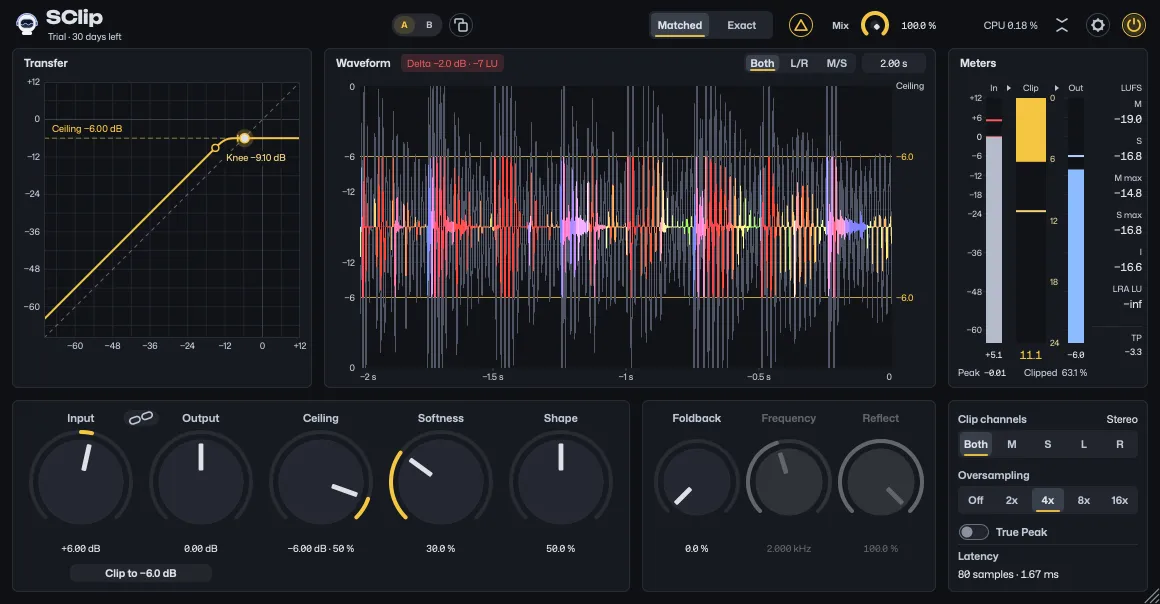
It is hard to judge a clip by listening to the result alone, so SClip lets you hear what it takes off. Delta in the header plays only what the clipper removes. By default it is matched: brought to stand as tall as the normal output, never above 0 dBFS, so it is easy to hear. What a clipper removes is far spikier than what it leaves, so at that height it is still quieter. The badge over the waveform gives both: Delta −2.0 dB · −7 LU is how far the delta was raised (negative where it had to come down to the output’s height) and, where it is more than 1 LU short, how far its loudness falls below the output’s.
Exact, on the Matched / Exact switch that shows left of Delta while it is on, plays exactly what was removed: at Output 0 dB and Mix 100 %, added to the output it gives back the signal after Input (the input itself at Input 0 dB), so use it there for a null test. Delta is a listening aid and is not held under the ceiling (FAQ). The waveform draws the delta where the audio was the delta, and switching it leaves what is already on screen as it sounded.
Try this: with Link on, push Input 3 dB at a time with Delta on. When the delta starts to sound like the music rather than its tips, that is usually more than we would use (Recipes).
A/B
A / B in the middle of the header holds two versions of your settings. Click the other letter to hear it: every knob and switch moves to that letter’s settings at once, through the usual smoothing, so nothing clicks, and the settings you leave stay with their letter. The first switch to B starts B as a copy of A. The copy button beside the letters copies the letter you hear to the other one. Link comes with its letter, together with the point it counts from. Oversampling and True Peak, which change the latency, stay as they are, and so do Power, Delta and Matched / Exact. Your DAW hears the knobs move as it hears your edits. Both letters, and which one you hear, are saved with your project.
Stereo, mid/side and one-sided clipping
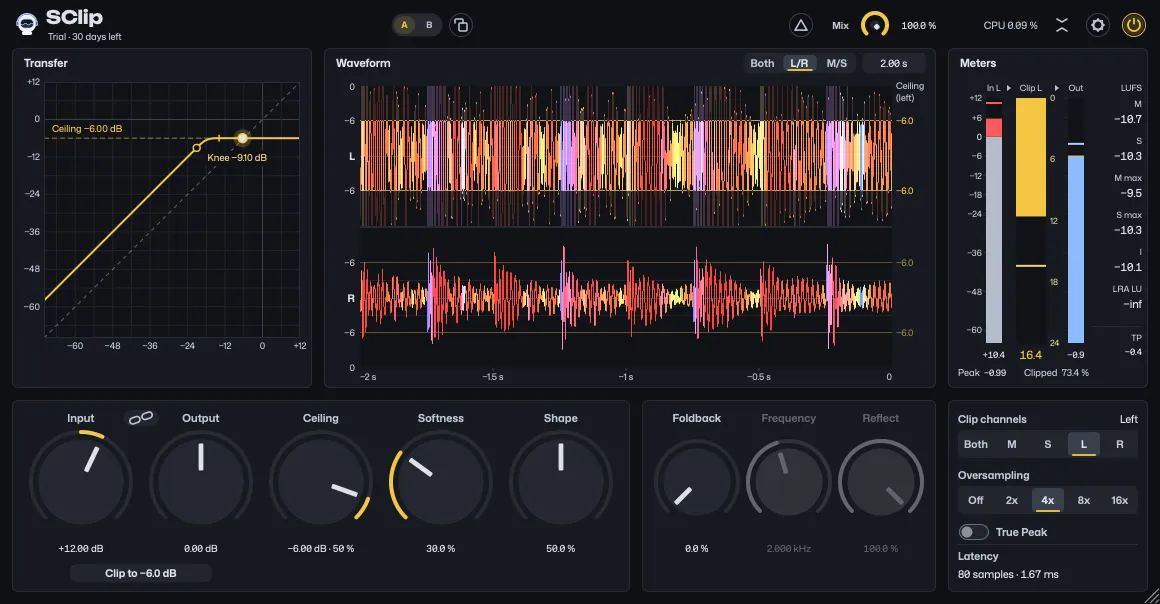
Clip channels, the Both / M / S / L / R switch above Oversampling, sets what the clipper works on; its caption spells out the choice (Stereo, Mid, Side, Left or Right), and each segment’s tooltip says what it does. Stereo, the default, clips both channels as they are. Mid only clips the mid, (L + R) / 2, and Side only the side, (L − R) / 2; Left only and Right only clip that channel. In those four, Input, the clip, Link, Foldback and, with oversampling, the look-ahead stage act on that part alone, and everything else passes untouched, delayed by the latency. Output and Mix still apply to the whole signal.
- When to use which. Stereo for a clipper at 0 dBFS on every track and wherever the ceiling must hold: it is the only choice that keeps every sample under it. Mid only shaves the peaks in the center, where the kick, the bass and a lead vocal usually sit, and leaves the side as it was. Side only shaves peaks that live in the width, such as a widened synth or a wide reverb, and leaves the center alone. Left only or Right only clip one channel when only that side peaks, such as a hard-panned part or a stereo pair with one hot side.
- Mid and side apart. For different settings on the mid and the side, such as a hard clip on the mid and a soft knee on the side, put two instances one after the other, one on Mid only and one on Side only. Each leaves the other part untouched, so each part gets its own Input, Ceiling, Softness, Shape and Foldback.
- The ceiling. The four only choices hold the part they clip at the ceiling (the channel, or the mid or the side before it goes back into the left and right channels) and put no safety clip on the rest. So the output can pass the Ceiling where the untouched part is over it by itself, and in Mid only and Side only also where the clipped part and the untouched one add up again in a channel (FAQ). That is the point of them: clipping one part leaves the rest as it was. For a hard ceiling use Stereo (The ceiling guarantee).
- Untouched. Left only and Right only give the other channel back exactly as it came, one latency later. Mid only and Side only give the other part back to within float rounding, since the two are added back into the left and right channels.
- What shows it. The In and Clip meters’ names say what is clipped, in both views: In and Clip in Stereo, In M and Clip M, In S and Clip S, In L and Clip L or In R and Clip R otherwise. In, Clip and Clipped then measure that part after Input, not the whole input (Clipped as the share of its samples), while Out shows the whole output with the ceiling marked on it, so an overshoot shows there and in the waveform. So with Side only, In can read under the Ceiling while Out reads over it: the side stays under the ceiling and nothing is clipped, while the channels, mid and side added up, pass it. The waveform draws its ceiling lines faint wherever it shows something other than the part, and its ceiling label names the part. Each only choice’s tooltip says what passes untouched and that its peaks can pass the ceiling.
- The waveform. Choosing a part switches the waveform to the lanes that show it beside the rest: mid / side for Mid only and Side only, left / right for Left only and Right only, both together for Stereo (in the compact view too, for when the waveform shows again). Once you pick the waveform’s channels yourself on its Both / L/R / M/S switch, Clip channels leaves them as they are, and the project keeps that. Until then any change of Clip channels switches them, your DAW’s automation too, but only while SClip’s window is open: a change made while it is closed leaves the lanes it opens with. The untouched part’s lane never shows anything as taken off. The lanes the choice switches to are exact; the others mix the part with the rest, so they cannot tell what was taken off from what Output changed: wherever the part was clipped they show all of the difference as taken off, and elsewhere none of it.
- Delta plays what was removed from the part as it sounds in the two channels: nothing in the untouched channel in Left only and Right only, the same in both for the mid, opposite in the two for the side.
- Clip to 0 measures the part, its loudest peak before Input, since Input gains that part alone. A change of Clip channels starts Peak over.
- Mono. A mono track has no mid, side, left or right, so every choice clips it as Stereo does. The switch then grays out and its tooltip says Mono input: clipped as Stereo, and the meters read In and Clip. The choice stays set and applies again on a stereo track.
- Switching. A change crossfades over 5 ms, without a click: the new choice’s clipper first runs unheard until its filters are full, then fades in. The latency is the oversampling setting’s in every choice. After a change to Stereo the ceiling holds once that crossfade has landed, 5 to 25 ms after the change at 48 kHz (measured). Clip channels is a parameter your DAW can automate. The crossfade needs a second clipper, which SClip sets up only once you leave Stereo, or for an offline bounce, so an instance that stays on Stereo keeps about half the memory (Performance).
The displays
Transfer graph
The output level against the input level, through Input, Ceiling, Softness and Shape, drawn by the same function the audio runs, so Input, Ceiling, Softness and Shape move it exactly. Both axes are in dBFS, from 6 dB below the lowest Ceiling to +12 dB, so every Ceiling, 0 dB included, sits inside the graph. It marks the ceiling and the knee’s start in dB, and a dot rides on the current input peak; a knee that lies off the scale (very soft, or with Input far up or down), or a peak whose input or output lies below it, is left out rather than drawn at the edge. With Link on it still draws the clip itself, without the gain Link takes off after it. With Input below the point Link counts from, its ceiling and knee sit as much lower as Input is under that point: the graph follows the signal after Input, while the clipper keeps working as it did at that point.
Zoom. Drag up on the level labels left of the graph to zoom in around the ceiling and down to zoom out (Shift for fine steps), or scroll on them; or hold Option (Alt on Windows) and scroll on the graph. Both axes zoom together, so the dashed line stays the diagonal, from the whole range down to 6 dB across, where the knee of a 1 dB trim spreads over the graph; the labels step from every 12 dB down to every 1 dB as you zoom in. While you drag the Ceiling, or Input with Link on, or automation moves them, the scale stays as it was; once the ceiling the graph draws has rested for half a second, the graph zooms around it. Double-click the labels to see the whole range again. The zoom is saved with your project, and a new SClip opens with the whole range.
Waveform
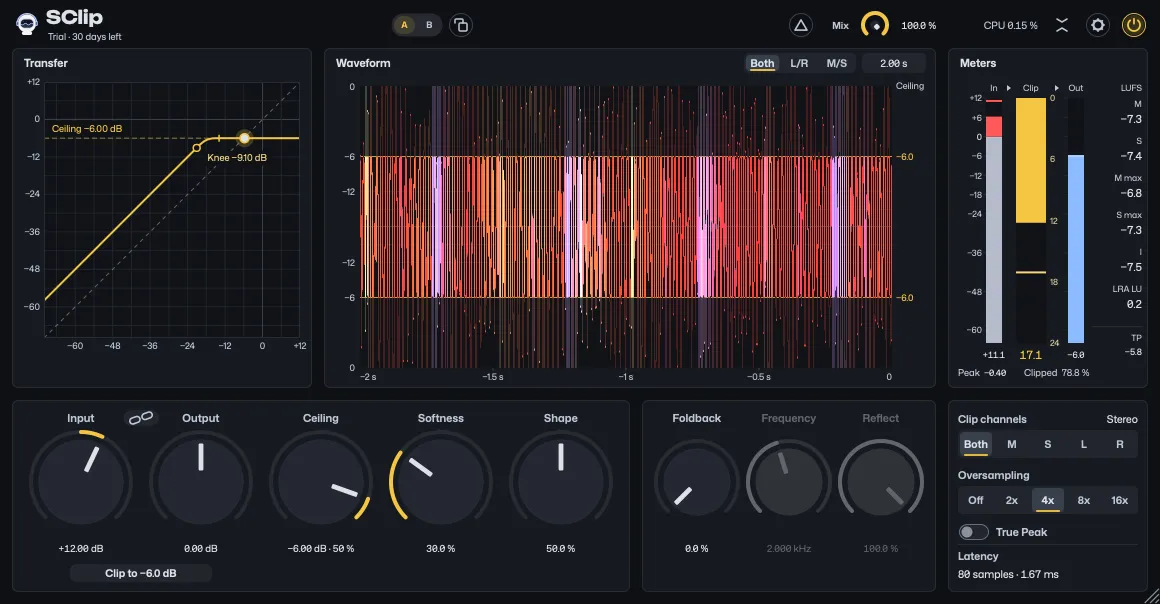
The last 10 s of signal by default, scrolling right to left: the output in front, what the clipper took off behind it.
- Colors. RGB, the default, colors the output by its frequency bands, as DJ software does: lows below 250 Hz red, mids green, highs above 2.5 kHz blue, blending as they mix (all three white). What the clipper took off is the same color, strongly faded, with a bright edge where the original peak was: its color shows which band was clipped, a red kick against blue hats. Gray is what Output, Mix or Link changed.
- Channels. Both channels together, the left above the right in two lanes, or the mid above the side, on the Both / L/R / M/S switch in its title. With Clip channels other than Stereo the lanes follow the part clipped until you pick them yourself, and the lane of the part left untouched never shows anything as taken off.
- Scope. Switch Scroll / Scope in its title to Scope to hold a steady tone still: each frame the waveform ends at the same point of the tone’s cycle, a rising zero crossing (the trigger an oscilloscope uses), so you can watch the fold, the flattened tops and the knee change in place while you turn Foldback, Reflect, Softness, Shape or Ceiling. It is the same waveform, with its channels, ceiling lines, span and zoom; set the span to a few cycles of the tone, and it shows as many as fit. It follows the signal before the clipper, so no knob of the clipper moves it, and two lanes stay lined up. With no steady tone (drums, noise, a chord, silence), or more than about 16 cycles in view, it scrolls as usual, and holds still again as soon as a steady tone returns. A click freezes it, and a drag looks back as in Scroll, holding still at that distance. Your project keeps the choice; a new SClip scrolls.
- Ceiling lines. Solid lines are a limit: the ceiling holds what that lane draws. Faint lines are only a level the signal drawn there may pass. In Stereo the lines are solid with both channels together and in left / right, and faint in mid / side, since the clipper works on the left and right channels and the mid and the side reach the ceiling only where both channels sit on it. With any other Clip channels choice the ceiling holds the part alone, so only that part’s lane draws them solid (the mid’s or the side’s in mid / side, the left’s or the right’s in left / right), and everywhere else they are faint, both channels together included: the rest passes the ceiling untouched. The label beside them then names the part, Ceiling (side) for Side only, and the tooltip over a line says it holds that part alone.
- Setting the Ceiling. Drag a ceiling line, or the level beside it, up or down to set the Ceiling, in any lane, at any zoom, live or frozen. Near a line the lines light up; elsewhere a click still freezes and a drag still looks back. A line takes the pointer at most half way to the middle of its lane, so where the lines sit close to the middle (zoomed out, or while you drag the Ceiling far down, before the scale follows it), the middle still freezes and looks back: grab the lines there by the level beside them. A line dragged past the middle stays at the lowest Ceiling. While you drag, the scale stays as it was, so one drag raises a low Ceiling only as far as the plot’s edge shows, 6 dB above where it was (further with the pointer past the edge); to go higher, let go, and once the scale has followed drag again, or use the knob. The line lands on tenths of a dB, and with Shift held it moves a tenth as far, on hundredths. A double-click on a line resets the Ceiling, as on its knob, and each drag is one move for your DAW’s automation, as a knob drag is.
- Zoom. From 1 ms to 30 s, 10 s by default. Pinch or scroll on the waveform or on the time labels under it, or drag the time labels up to zoom in and down to zoom out (Shift for fine steps); zooming never freezes it. While it runs, the newest moment stays at the right edge; frozen, it zooms where the pointer is, and the moment under it stays in place. Double-click the time labels to go back to 10 s. Or use the span field in its header: click it to type (
50 ms,0.5 s), drag up for more time and down for less, double-click it to go back to 10 s. With a screen reader, the time labels read the span and zoom in and out half an octave a step. Close in, where a pixel holds less than a sample, the output is a line from sample to sample. Zoomed in until the waveform shows as a line, what the clipper took off is a faded line beside it, without the bright edge. - Freeze. Click the waveform to freeze it and again to resume at the newest moment; only a click freezes it. Dragging it, swiping sideways or dragging the time labels sideways (Shift for fine steps) looks back without freezing: while it runs, the view keeps its distance from now and moves on with the music. The time labels count back from now, or from the freeze, so they show how far back you look, up to 30 s. A frozen picture can be zoomed and panned however long you hold it.
- History. Each sample keeps the knee (where clipping began) it was recorded with, so a new Ceiling or Softness colors only what comes after it, while the ceiling lines move at once.
- Level zoom. The level scale is linear and follows the Ceiling: as it opens, the ceiling sits halfway up each lane and 6 dB above it at the edge, whatever the Ceiling, so the top dB of clipping read large at any Ceiling. While you drag the Ceiling or automation moves it, its lines move on the scale they had; once it rests for half a second (you let go, or the automation holds still), the whole waveform, what is already drawn included, rescales so the ceiling sits where it did. Zoom it from −24 to +36 dB: hold Option (Alt on Windows) and scroll on the waveform, or scroll on the level labels left of it, or drag up and down on them (Shift for fine steps), up to zoom in. A zoom sets how much shows above and below the ceiling, and keeps following the Ceiling from there: zoom in to see a quiet signal fill the height, out to keep peaks driven far past the ceiling in view. The labels follow in dBFS, every 6 dB; whatever lies beyond the edge is cut there, and a ceiling beyond it shows no line, only its level at the plot’s top and bottom edges, which you can still drag. Double-click the labels to go back. The transfer graph is always in dB.
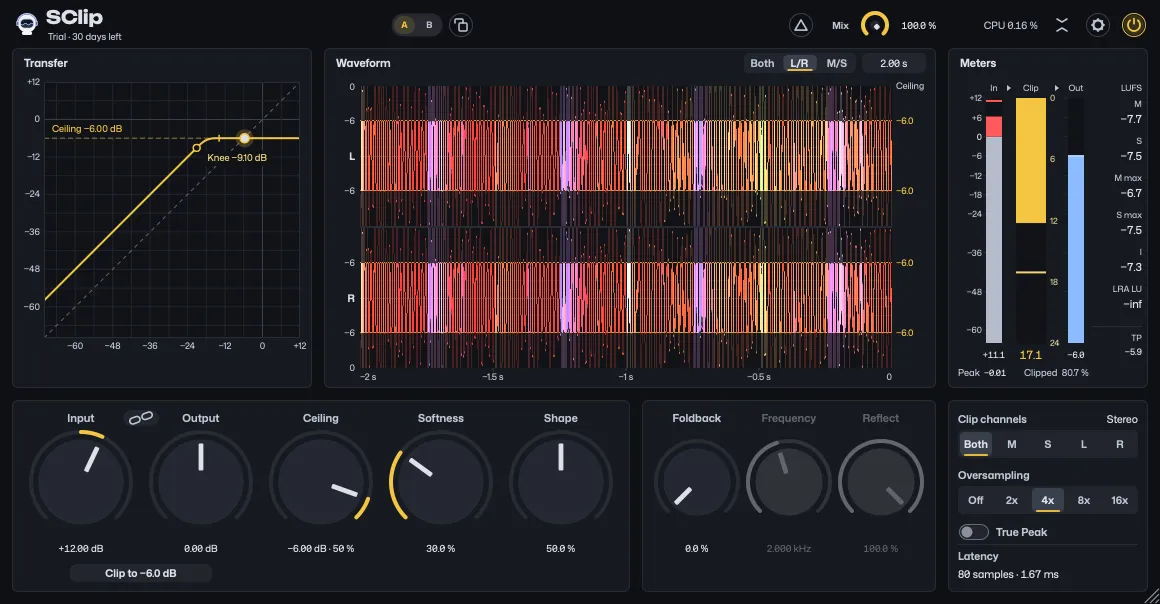
Meters
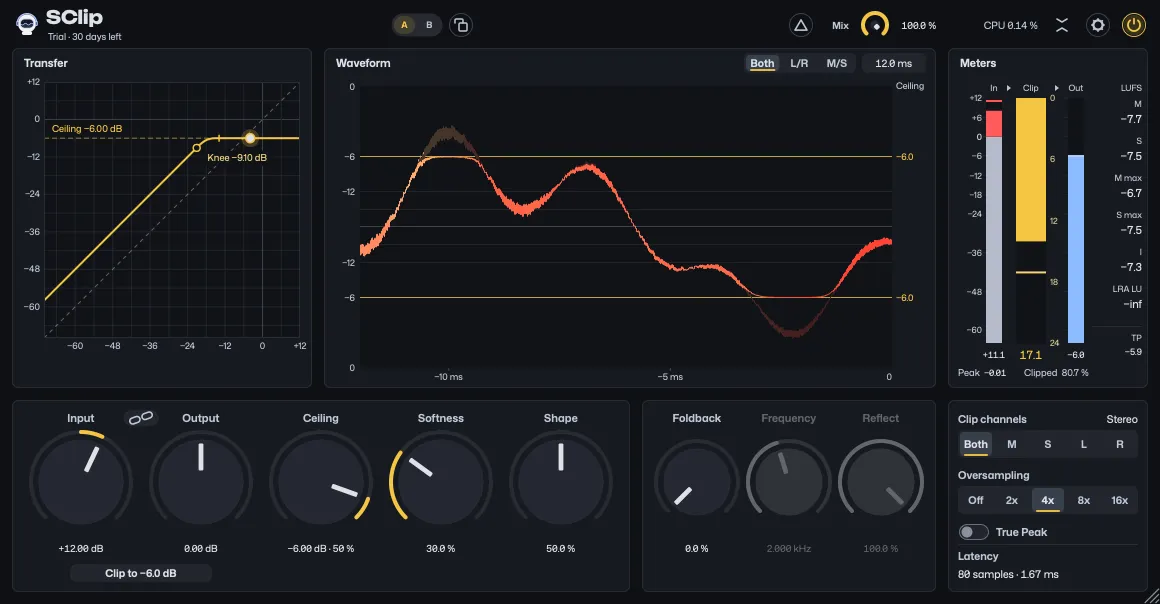
The meters show the level going in and coming out, how much is clipped, and the output’s loudness. Hover over a number, a name such as M max or In, or a bar, and its tooltip says in short what it reads; the table below has the whole of it. A number you can click and its label are one button: hover over either and both light up together.
| Meter | What it shows |
|---|---|
| In / Out | The highest sample level going in (after Input, before the clipper) and coming out, in dBFS. The number under each bar is the highest since the last reset; Out turns red if a sample goes above 0 dBFS, and the line across it marks the Ceiling. |
| Clip | Between In and Out, the widest bar: how many dB the clip curve takes off the loudest sample right now; its larger number is the most since the last reset. 1–3 dB is light clipping, 6 dB and up is heavy. It reads the curve alone: what Foldback, the ceiling stage and True Peak do is not in it. |
| Peak | Under In: the loudest peak before Input since its own reset, which Clip to 0 sets Input by (Gain staging). A click on it or on its label resets it alone. |
| Clipped % | How many of the samples reached the knee, so with Softness above 0 the gently bent ones count as well as the clipped ones: how often it clips rather than how deep. It shows the most in any 0.2 s since the last reset; its tooltip adds the share over everything since the reset, the whole song if you reset it at the start. |
| M (momentary) | How loud the last 0.4 seconds were, in LUFS. It follows the music moment by moment: kicks and drops make it jump. |
| S (short-term) | How loud the last 3 seconds were, in LUFS. Steadier than M: it tells you how loud a section is. |
| M max | The loudest moment since you last reset it, in LUFS. Reset it, play the loudest part of a sound, and read it. It tells you how loud that sound hits, so you can compare tracks by how loud they sound rather than by their peaks. |
| S max | The loudest 3 seconds since you last reset it, in LUFS: how loud the loudest section is. |
| I (integrated) | How loud everything since the last reset was, as one number in LUFS. Pauses and silence are left out. This is the number streaming services go by. Reset it, play the whole song or the drop, and read it. Its tooltip adds the song’s peak-to-loudness (PLR): TP minus I, how squashed the song is overall, as other PLR meters measure it. Clipping shrinks it. It is worked out from the two numbers on screen, not from the Ceiling, since Output and Mix move the output’s peak. |
| LRA (loudness range) | How much the loudness varies since the last reset, in LU, as EBU R 128 measures it: the spread of S between its 10th and 95th percentiles (its quietest 10 % and loudest 5 % left out), pauses and quiet fades left out too. A dense, steady master reads a few LU, a dynamic mix 10 or more. It reads −inf, as the others do before they have a value, until 3 seconds have played since the reset. Its label, LRA LU, names its unit, since the LUFS over the loudness numbers is the others’. |
| TP | The highest true peak since the last reset, in dBTP: the peaks between the samples that a DAC or an MP3/AAC encoder rebuilds. Clipped audio reads a little over its ceiling; it only matters for delivery specs such as −1 dBTP. It stands under LRA, below its label (under the Out number, as “TP −0.3”, in the compact view). |
LUFS, K-weighting, dBFS and dBTP are explained in Levels.
A click on any maximum, or on its label (M max, S max, I, LRA LU, TP), resets them all: the numbers under the bars, Clipped %, M max, S max, I, LRA and TP, with the hold marks. M and S follow the music and have nothing to reset. A mono track reads 3 LU lower than the same sound on both sides of a stereo track.
With Clip channels other than Stereo, In, Clip and Clipped measure the part being clipped, not the whole input, and the In and Clip meters name it (“In M” and “Clip M”, “In S” and “Clip S”, “In L” and “Clip L”, “In R” and “Clip R”); Out and the waveform show the whole output, which there can pass the ceiling.
The bars rise at once and fall at 20 dB a second, and their hold marks stay 1.5 s. The numbers under the bars, TP and Clipped change at most five times a second, the loudness numbers ten times, so they stay readable. TP reads over 0 dBTP on most signals clipped at 0 dBFS, typically by tenths of a dB to 1 dB with Oversampling off and by hundredths with it on, more on a mix clipped deep: that is what clipping does between the samples, so it keeps its plain color (FAQ). SClip measures every number all the time, with its window closed too, so the numbers under the bars, Clipped %, TP, M max, S max, I and LRA cover everything since the last reset: open the window after the loudest part and they show it. Only the bars, their hold marks and the waveform wait for the window. The loudness is measured as ITU-R BS.1770 and EBU R 128 have it, I and LRA with their gates, and reads EBU’s test signals within their tolerances: 0.1 LU for the loudness (Tech 3341), 1 LU for LRA (Tech 3342).
Compact view
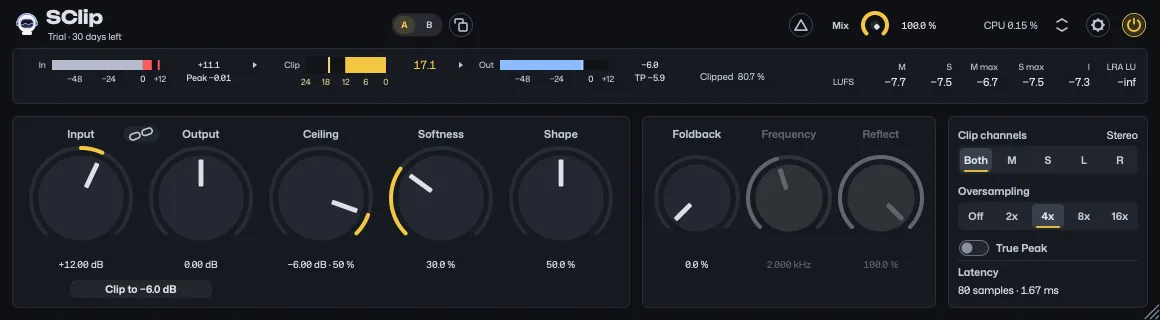
The button with two small arrows, left of the gear, hides the transfer graph and the waveform. The meters move into a row under the header, the knobs, Link, Clip to 0 and the Clip channels and Oversampling panel move up under them as they were, and the window keeps its width at about half the height. The arrows point toward each other in the full view and apart in the compact one; click the button again for the full view. Screen readers call it Compact view.
- What it saves. While compact, the waveform is gone, not just hidden: it draws nothing and keeps no history, and the audio stops feeding it. The transfer graph is hidden and draws nothing until you switch back. On a Mac with a Metal GPU, and on Windows, the GPU draws the meter bars in both views, whatever draws the waveform, unless GPU Drawing in Settings is Off. With music playing at 120 Hz on an Apple M4 Pro, SClip used 14 to 43 % less CPU than in the full view where a Mac’s GPU draws the waveform, and about as much as where the CPU draws everything (from a fifth less to an eighth more), in four sets of six rounds. The sound is the same in both views, bit for bit.
- What keeps running. Every control, the meters and the loudness. The meters’ maximums, TP, hold marks, M max, S max, I and LRA carry over a switch either way.
- Switching back. The waveform starts empty and fills from what plays then, with the span, level zoom, channels and Scroll or Scope you left it with, and the transfer graph with its zoom. A history with a gap would show moments side by side that never followed each other, and keeping it filled while hidden would cost what the compact view saves.
- The header. The same as the full view’s: A / B, Matched / Exact while Delta is on, Delta, Mix, CPU, the button, the gear and Power. Clip channels stays above Oversampling; the displays’ switches come back with the displays.
- Saved. Each SClip keeps its view with your project, and a new one opens in the view you chose last on this computer. The window’s size works in both views and carries over: at 150 % in one, the other opens at 150 % too (Settings).
Switches
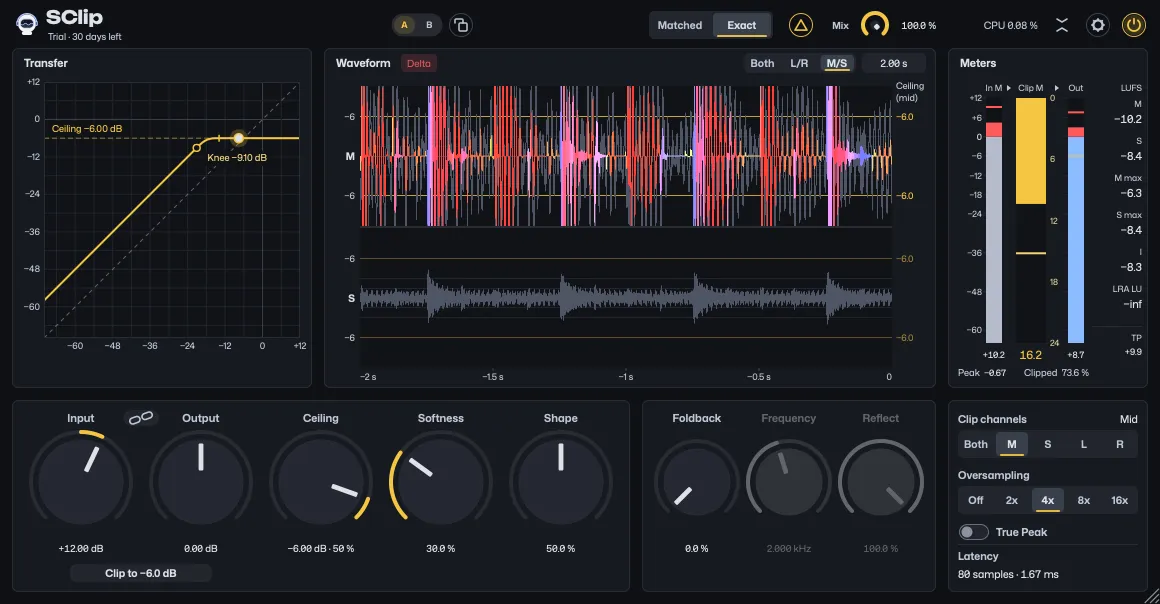
Every choice sits on the part it changes. The selected segment is lit; click another to choose it.
| Switch | Where | What it does |
|---|---|---|
| Scroll / Scope | The waveform’s title, left of its channels | Scroll runs the waveform right to left; Scope holds a steady tone still, the same point of its cycle at the right edge on every frame. Anything without a steady tone scrolls in both. |
| Both / L/R / M/S | The waveform’s title | Both channels together, L/R the left above the right, M/S the mid above the side. Until you pick one, they follow Clip channels. |
| Matched / Exact | The header, left of Delta, only while Delta is on | Exact plays exactly what the clipper removed, unraised. It is a parameter (Delta Match), so your DAW can automate it. |
| True Peak | Under Oversampling, above Latency | Holds the true peak under the ceiling too; off by default. With the pointer on it, Latency shows the latency it would have. See Oversampling and latency. It is a parameter, so your DAW can automate it. |
| Both / M / S / L / R | Under Clip channels, above Oversampling | What the clipper works on: Stereo, the default, Mid only, Side only, Left only or Right only, each with a tooltip. Every choice but Stereo clips that part alone and leaves the rest untouched, so the output can pass the ceiling. See Stereo, mid/side and one-sided clipping. It is a parameter, so your DAW can automate it. |
Screen readers name each switch and segment. The view, the transfer graph’s zoom and the waveform’s level zoom, channels (and whether you picked them), Scroll or Scope and span are saved with your project. Recalling a preset, using your DAW’s Compare or pasting settings while the window is open changes the sound but leaves the window as you see it, and that view is what your project saves next. Only the waveform’s channels move, and only until you pick them yourself: like any change of Clip channels, the one the preset brings switches them; with the window closed, the view comes with the settings. The window’s size is saved with your project too, and kept the same way while the window is open: see Settings.
Settings
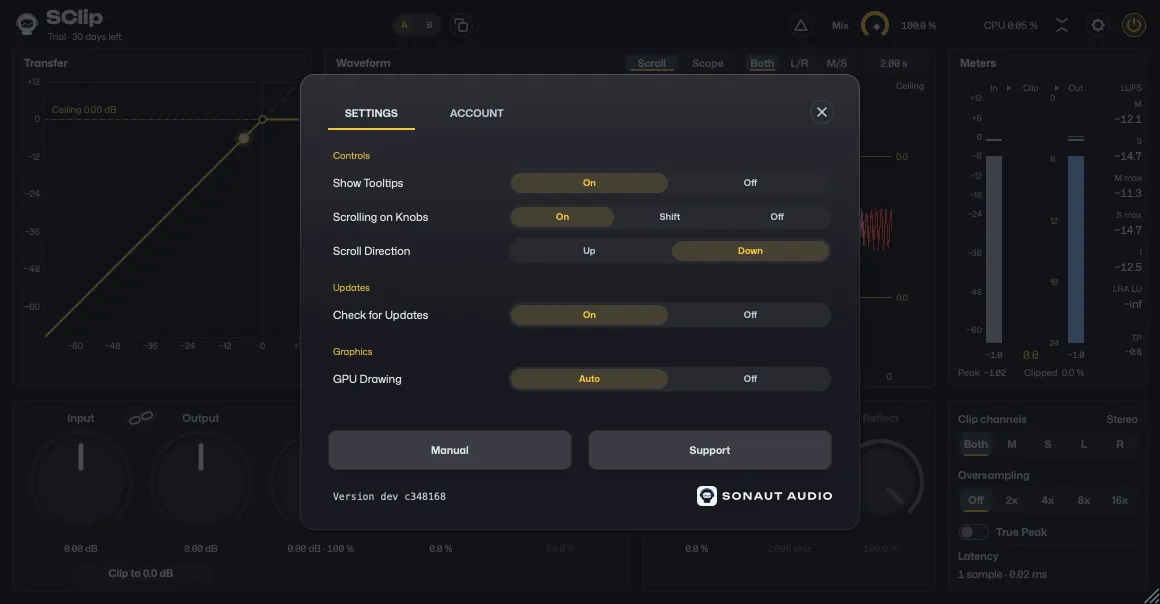
The gear at the header’s right end, left of Power, opens Settings over the whole window, in two tabs, SETTINGS and ACCOUNT. Its close button at the top right, or a click outside it, closes it.
| Row | What it does |
|---|---|
| Show Tooltips | On shows each control’s tooltip when you rest the pointer on it; Off hides them. |
| Scrolling on Knobs | Whether the wheel or a trackpad swipe moves a knob: On always, Shift only with Shift held, Off never. |
| Scroll Direction | Up raises a knob when you scroll up, Down when you scroll down. Down is the default. |
| Check for Updates | On has SClip ask the Sonaut Audio website for its newest version once a day while its window is open and, when there is a newer one than yours, show Version 1.3.0 available, a link to its download page, beside the version at the bottom of Settings and, once SClip is activated, under its name, where the trial’s line stands until then. The request carries the plugin’s slug and the usual User-Agent, and nothing else, and when it fails nothing shows. Off asks nothing and shows nothing. On by default; Linux has no such row, since SClip never asks there. |
| GPU Drawing | Auto lets the graphics card draw the meters, the transfer graph and, once it has drawn a test picture correctly, the waveform; on Linux the CPU draws them. Off has the CPU draw them instead, which costs more CPU. On Windows the system keeps drawing the controls as it always does. Off takes effect at once, Auto the next time you open the window. If your DAW crashed as a window opened on the graphics card, the next one opens as under Off, a line under the row saying why, until SClip, the graphics driver or the system is updated. |
Show Tooltips, Scrolling on Knobs, Scroll Direction and Check for Updates are the company’s: every Sonaut Audio plugin reads the same choices, so one made in another plugin holds here too. GPU Drawing, under Graphics, is SClip’s alone, on this computer.
Settings holds no window size: drag the window’s bottom-right corner to size it. It keeps its proportions, from half its 100 % size up to what your screen holds, with no steps between, in either view. Your project keeps the size of each SClip window, and a new SClip opens at the size you last gave one, 75 % until you size one. Where your screen cannot hold a window’s size, it opens as large as fits, with the gear and the resize corner on screen; the size itself stays, so a bigger screen, or a move to where there is room, gives it in full again. Moved to a screen of another display scale, it keeps its size, as large as that screen holds. At 50 % the smallest labels are hard to read without leaning in. Settings keeps its text readable at every size and in both views: where the window cannot hold it, its card fills the window and scrolls, its tabs with its rows, with the wheel or its scroll bar, and Tab brings each control into view.
ACCOUNT is where SClip is activated, with your email address and license key, and where the trial’s line takes you once the trial has ended. Manual opens this manual in your browser, Support starts an email to support, and the SClip version stands at the bottom, beside the Sonaut Audio logo, with Version 1.3.0 available after it once a newer version is out and Check for Updates is on: a link to SClip’s download page, which the header shows under the name too once SClip is activated.
Precise control
| To | Do this |
|---|---|
| Type a value | Click a readout. The unit is optional: a number alone is in the field’s own unit, and -6 dB typed into a dB field does the obvious thing. |
| Drag | Up or right raises a knob, landing on round values, each at least 1.5 points of mouse travel wide (1.25 on Foldback), so a whole dB or % such as −5.00 dB is easy to stop on: 0.1 dB on Input and Output, all along the knob, which makes them slower to sweep end to end than the other knobs; 0.5 dB on the Ceiling, every dB the same travel anywhere on that knob; 1 % on Softness, Shape, Mix, Foldback and Reflect; and on Frequency round Hz, from 10 Hz near 500 Hz to 500 Hz near 12 kHz. Shift-drag or Cmd-drag (Ctrl-drag on Windows) moves one readout digit (0.01 dB, 0.1 %, 1 Hz, or 10 Hz from 10 kHz) per two points, so every value the readout shows can be reached. |
| Scroll | Scrolling on Knobs and Scroll Direction in Settings decide whether the wheel moves a knob and which way; with Shift as the switch, Cmd (Ctrl on Windows) takes the fine step. 0.5 dB or 5 % per wheel notch, 0.05 dB or 0.5 % with Shift, landing on those steps. A trackpad moves in proportion to the swipe on 0.1 dB or 1 % steps (0.01 dB or 0.1 % with Shift) and ignores its momentum, so a knob stays where you put it. From a value between steps (a typed one, say), scrolling never moves it the other way: it goes on to the next step in the direction you scroll. |
| Reset | Double-click a knob. Alt-click (Option-click) does nothing. |
SClip’s window has no undo of its own for now: Cmd+Z (Ctrl+Z) goes to your DAW, and your DAW’s own undo, where it keeps plugin changes, switches SClip’s parameters back.
With Link on, dragging and scrolling land the effective output the Output knob shows on round values. Typed values, a reset, Clip to 0 and your DAW’s automation are never rounded, and the parameters have no steps of their own, so automation stays continuous. Typed values that save a trip:
- Ceiling takes a share of full scale (
50%is −6.02 dB,70%−3.10 dB) and reads a number without a sign as negative (3is −3 dB). - Softness takes dB as how far below the ceiling the knee starts (
-3 dBis 29.2 %). - Mix takes dB as a share of full level (
-6 dBis 50.1 %). - Frequency takes
750,2kor2 kHz; a number up to 20 is kHz. Its wheel steps in octaves, landing on round Hz: a notch 5 hundredths of an octave, with Shift a tenth of that. -infgoes to the bottom of a range (in Softness,-inf dBis a knee from silence up, 100 %), and a decimal comma works too.
The ceiling guarantee
At Output 0 dB or lower and Mix 100 %, with Delta off, Power on and Clip channels on Stereo, no sample leaves SClip above the Ceiling: in every oversampling setting, at any Softness and Foldback, with Link, and while you automate. No setting turns the clipper’s ceiling off. It is a sample-peak ceiling: the peaks between the samples of a clipped signal can pass it, as the TP number under the loudness shows: it reads them up to about 4 dB over with Oversampling off and half a dB with it on, and a finer meter up to 5.6 and 0.7 dB (FAQ). Switch True Peak on and those stay under it too, on music within 0.1 dB. A tone just under half the sample rate driven hard can still pass it by a few dB.
What comes after the clipper, or around it, can take the level past it:
- Output above 0 dB raises everything, the clipped peaks included.
- Mix below 100 % blends in the dry signal, whose peaks were never clipped.
- Delta is a listening aid, not a signal to print.
- Power off, your DAW’s bypass and an ended trial pass the input unclipped.
- Clip channels other than Stereo hold only the part they clip; the rest passes untouched and can pass the ceiling (Stereo, mid/side and one-sided clipping). For a hard ceiling use Stereo. After a change to Stereo, the ceiling holds once the change’s crossfade has landed, 5 to 25 ms after the change at 48 kHz.
- Your DAW’s oversampling filters SClip’s output after it; use SClip’s own.
Automation
Input, Ceiling, Softness, Shape, Output, Mix, Foldback, Foldback Frequency, Reflect, Input/Output Link, Delta Match (the exact or matched delta), Clip Channels, True Peak and Bypass, your DAW’s own bypass, are host parameters your DAW can automate. Power and Delta are saved with the project, not exposed to your DAW. Oversampling is a parameter too but cannot be automated, since it moves the latency. Clip to 0 is an action, not a parameter: what it sets is Input. Right-click a control for your DAW’s automation items for it (Main controls). The view and the displays’ choices are saved with the project, never automated; the window’s size is saved with the project too (see Settings).
Performance
SClip’s audio costs little. One instance clipping hard, its window closed, on one core of an Apple M4 Pro at 48 kHz, the meters and the loudness included (they keep measuring with the window closed):
| Oversampling | Share of one core |
|---|---|
| Off | 0.04 % |
| 2x | 0.12 % |
| 4x | 0.15 % |
| 8x | 0.20 % |
| 16x | 0.32 % |
Lighter clipping costs less, since SClip skips what cannot reach the ceiling, and so do quieter passages: TP is measured only where the music could raise it. At 44.1 kHz the steeper filters make 4x, 8x and 16x 3 to 8 % more costly per sample. Foldback and the matched Delta add a little while they run, and nothing while they are off. Clip channels other than Stereo cost less, since one signal runs through the clipper instead of two (0.02 to 0.03 % at Off, 0.10 to 0.11 % at 8x); while a change of it crossfades, both run.
CPU in the header. The CPU number in SClip’s header measures this as it plays, on your computer: the time this SClip’s audio processing took against the audio’s own time, on one core. It counts only while the window is open, when the bars move too, so on the same hard clipping it reads about 0.04 % at Off, 0.12 % at 2x, 0.15 % at 4x, 0.21 % at 8x and 0.32 % at 16x on the M4 Pro. Drawing the window is not in it: your computer’s activity monitor counts that as part of your DAW.
The open window costs far more than the audio: on the M4 Pro with music playing at 120 Hz it keeps 26 to 34 % of one core busy, the drawing included, where the GPU draws, and 19 to 26 % where the CPU draws everything; at rest, or covered, about 4 to 5 %. The compact view costs about what the CPU-drawn window does with music, and takes about a quarter off the GPU-drawn one’s. On Windows the GPU draws the meter bars, the transfer graph and the waveform with OpenGL, and the CPU the rest. On Linux the CPU draws the whole window. The drawing, the bars and the waveform run only while the window is open, so closing it saves all of that. The meters’ numbers and the loudness keep running, so the numbers under the bars, Clipped %, TP, M max, S max, I and LRA cover the whole song: they are part of the figures in the table above.
Memory. An instance with Clip channels on Stereo holds about 380 KB at most, whatever your DAW’s buffer size, and about 500 KB once Clip channels has left Stereo (measured at 48 kHz, the window closed).
Opening. SClip opens at once. In measured openings on the M4 Pro, the plugin was created, readied to play and given a project’s settings in 0.2 to 0.3 ms, and its window showed its first picture 36 to 39 ms after the DAW asked for it on the first opening after the DAW started, and 16 to 18 ms on later openings. Nothing waits for the GPU: the CPU draws the waveform until the GPU is ready, about a tenth of a second after the window opens, or longer the first time macOS compiles SClip’s shaders. On Linux the CPU draws the whole window. On Windows the CPU draws the window’s first picture, which the system’s graphics devices put on the screen, and from then on the GPU draws the meter bars, the transfer graph and the waveform with OpenGL. The first SClip in your DAW makes those devices and loads the graphics driver shortly after it loads, on a thread of its own, so a window opened after that doesn’t wait for them. The devices take about 35 MB of memory in each DAW process from then on, whether or not a window opens.
Motion and older Macs
Everything that moves runs on your display’s refresh, 60, 120 or 165 Hz or ProMotion’s, at most 60 times a second while the CPU draws the meters or the waveform, and moves by the time that passed, so a meter falls at the same speed at any rate. With silence and nothing touched, nothing is drawn. A window no one can see (covered, minimized, on a locked screen) draws nothing either, and is current the moment it shows again, on Windows within half a second. On Windows it counts as covered where one other window covers it whole, a menu, a tooltip, a floating panel or a Windows Store app’s window (Settings, Calculator) not counting, and on Linux only a minimized window counts.
- The waveform on the GPU. On a Mac the GPU draws the waveform with Metal, which then glides by fractions of a pixel; on Windows the GPU draws it with OpenGL; on Linux the CPU draws it, unless
SClip.settingsasks for the GPU (FAQ), which then draws it with OpenGL, without the check below. On a Mac it draws on the GPU that drives your window’s display, never the system’s default one, so a MacBook Pro’s discrete GPU is not woken for it. That GPU also draws the meters’ bars and the transfer graph, with its dot, under the controls, whatever draws the waveform, unless GPU Drawing in Settings is Off; they go back to the CPU if their drawing cannot start or keeps failing. On Windows the GPU draws the meters and the graph the same way, with OpenGL; on Linux the CPU draws them too, unlessSClip.settingsasks for the GPU, which then draws them with the waveform. Where SClip chooses by itself, a GPU draws the waveform only once it has drawn a known picture that SClip checks, since an old GPU on a patched macOS, or a graphics driver that compiles SClip’s shaders its own way, can draw wrong pixels without reporting it; if the check fails, the CPU draws. Where the graphics drive the screen without a GPU (a virtual machine, a remote session), the CPU draws whatever GPU Drawing says. The check runs once for each GPU it draws on, graphics driver, system version and version of SClip, after the window’s first picture, and until the GPU is ready the CPU draws, so the window never waits for it. - If it looks wrong. Under GPU Drawing’s Auto, SClip picks the GPU or the CPU by itself. For the rare computer where the picture is still wrong, set GPU Drawing in Settings to Off, and the CPU draws the whole window; the FAQ has the way out when the window cannot open at all.
- The frame governor. On a Mac too slow for every frame, SClip measures what each frame costs. When frames take more than 65 % of the frame time for a second, the waveform, the meters and the graph’s dot update on every second frame, then every third if needed, still moving at the same speed (on a 120 Hz display, 60 and then 40 times a second, or 30 and then 20 while the CPU draws the meters or the waveform). It steps back up after 3 s with room to spare. Windows and Linux have no governor.
- Reduce motion. With Reduce motion on in macOS (System Settings, Accessibility, Display), the controls change without moving: a switch’s highlight, a hover or a press, a zoom step of the waveform and Settings’ tab line land at once, and SClip follows a change of the setting within half a second. The meters and the waveform still move, since they show the sound. Windows and Linux have no setting SClip reads.
- Less to draw. The compact view leaves out the waveform and hides the transfer graph, so the waveform’s drawing and the graph’s redraws stop, and a slow computer has far less to draw; the controls and the meters stay.
Trial
Without a key, SClip is a 30-day trial of the full plugin, with no account. The 30 days start the first time you use it: the first time its window opens or audio runs through it (a DAW scanning its plugins does not count). The header counts the days down, and nothing else interrupts you; License shows its lines.
When the trial ends, SClip stays in your projects and passes the signal through unchanged, delayed by its latency: nothing is clipped, and every control stays editable. Power shows as off and is locked, the displays dim and hold still as they do with Power off, and the header’s line turns into a button that opens the Account tab. Once you enter your key, Power and the displays are as they were.
While your computer’s clock is more than an hour behind the latest time the plugin has seen, the trial counts as ended until the clock catches up, and the Account tab asks you to check it. Setting the clock back never gives a day back. The trial is stored with SClip’s settings, so updates and reinstalls keep it. A license key ends the trial for good.
Activation
SClip activates offline, under the Account tab, with your email address and license key: License has the steps and what the plugin shows before and after.
Requirements
CLAP and VST3 on macOS, Windows and Linux, AU on macOS; mono or stereo. AAX for Pro Tools is in preparation and not available yet. Install lists the systems it runs on.