Everything about Warp Filter on one page. Print it or save it as a PDF, or jump to the FAQ if something is not behaving.
Warp Filter is a resonant filter that never stands still. We built it because a static EQ boost on a pad or a loop sounds the same on bar 64 as on bar 1, and we wanted a boost that moves. Every point you draw becomes a stream of narrow resonant bands that rise or fall through the spectrum, and the sound keeps moving without ever arriving. It won’t replace your EQ for a plain, fixed cut: a point is always a hill of ringing bands, never one smooth curve.
The basics
What a resonant band does
A band is a narrow boost, or cut, around one frequency. Make it narrow enough and it rings: you hear a tone at that frequency on top of the sound, the way a guitar body sings at certain notes. Notch Q sets how narrow each band is.
What a point does
A point is a hill of these bands, drawn where you put it on the display. The bands stream through the hill one after another, each fading in at one end of the spectrum and out at the other, like the stripes of a barber pole that climb forever and never reach the top (the trick of a Shepard tone). Rate sets how fast they stream and which way, Count how many there are, and Q how wide the hill is.
What Mix does
Warp Filter adds only the difference to your dry signal. Mix says how much of it you hear: 0 % is dry, 100 % the full drawing, and below 0 % every boost turns into a cut.
Getting started
Install and activate
Install it as Install describes, which also lists what it runs on, restart your DAW and load Warp Filter on a track. Without a key it runs as a 30-day trial; License shows how your email address and key make it yours for good.
Find the controls that matter
- Add a point. Double-click empty space on the display, then drag it to set its frequency and gain. Double-click a point to bypass it.
- Rate sets the point’s speed and direction, following your DAW’s tempo: right runs the stream up, left runs it down, center holds with the first band on the point.
- Mix is a depth control: how much of the movement you hear.
Double-click a knob to reset it, or its value to type one in the unit shown, with a decimal point or a comma. Hold Shift or Cmd (Ctrl on Windows and Linux) while dragging a knob to move it finely.
Try this
- Put Warp Filter on a pad and play it.
- Double-click the display at about 2 kHz and drag the point up to +12 dB.
- Turn the point’s Rate right to +1 bar. The bands climb through the hill in time with the song.
- Turn Notch Q up to 8 and listen to the bands start to ring. Then switch Delta on to hear only what the point adds.
Recipes
These are the values we would try first. Your track decides the rest.
A slow rise under a breakdown
- Add a point at 1 kHz, Gain +9 dB, and set its Q to ×0.5 for a broad hill.
- Set Rate to +8 bars and Count to 6.
- Bring Mix up from 0 % over the breakdown with automation.
Bands in key
- Set Root and Scale to the song’s key, for example A and a minor scale.
- Add a point at 800 Hz, +12 dB, Notch Q 10, and turn its Scale amount to 100 %.
- Leave Glide at 15 ms so the bands slide into each note instead of jumping. Hold MIDI notes to have the bands follow them instead of the scale.
Width that moves
- Add a point at 3 kHz, +8 dB, Rate +1/2.
- Turn Reverse on: the second channel’s stream runs the other way. Leave the switch under Spread on M/S, so the mid rises while the side falls.
- Add Spread to taste to offset the second stream.
Let the drums push it
- Route a sidechain from the drums and set Env to SC, Attack 5 ms, Release 200 ms.
- Drag the Env badge onto a point’s Gain knob and drag the ring up for the amount.
- Each hit now raises the point, and the bands fall back between hits.
Signal flow
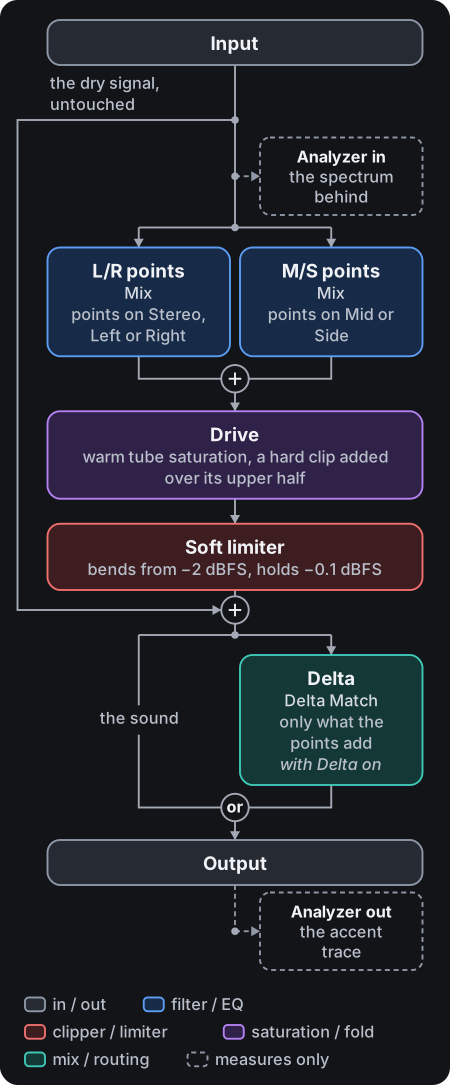
Draw points on the display and each fills the spectrum with resonant bands in motion. Only what the points add is processed: the difference from the dry signal, so nothing else changes. The points on Stereo, Left or Right and those on Mid or Side work side by side on the input, and their changes add up. Auto gain is a band trim on each point: a broad correction under the point’s hill that brings that stretch of the spectrum back to about the loudness it came in with, turning a boost down and lifting a cut. It is worked out from the points’ settings, not from the signal, and leaves the rest of the spectrum alone, so a loud boost on one point does not turn the other points down. Drive can saturate what the plugin adds: warm tube saturation over its whole range, with a hard clip added over its upper half; above 0 it also lets each point’s resonance saturate. A soft limiter caps only what the plugin adds: it starts bending at −2 dBFS and holds −0.1 dBFS. The dry signal passes around the limiter untouched, so a hot input or a big boost can still take the output past −0.1 dBFS. Power, your DAW’s bypass and an ended trial fade out only what the plugin adds, over 50 ms, and take Mix to 0; the dry signal is never touched. Latency is zero: each band is a zero-delay-feedback state-variable filter, which stays stable while it sweeps fast, and Drive’s tube saturation and hard clip hold their aliasing down with first-order ADAA (antiderivative anti-aliasing), about as well as 2x oversampling and at no latency.
Only Delta, in the header, takes the dry signal out of the output, so you hear what the points add on their own.
The display
| Element | What it does |
|---|---|
| Points | Double-click empty space to add a point; double-click a point to bypass it; drag to move it in frequency and gain. A point its modulation moves is also caught at the faint circle where it rests. Cmd-click (Ctrl on Windows and Linux) adds a point to the selection or takes it out, and a Cmd-drag over empty space frames several; dragging one of them moves them all. The × on the point panel removes the selected points. Up to eight points. |
| Copy / Paste / Points | Right-click for a Copy · Paste · Points pill. Copy takes a point’s settings — everything but its Gain, Freq and bypass — from the point under the mouse, else the selected one. Paste puts them onto the point under the mouse, or adds a point there with them; it works between plugin instances too. Points opens the list of points to select one from; it is dim while there is no point. |
| Analyzer | The input spectrum, and over it the output in the accent color, as it leaves the plugin, so with Delta on it shows the change. Always on; it pauses while the plugin is switched off and after the trial ends. |
On a computer that cannot keep up, the background softens and slows first, then the analyzer and the curves; a point you drag always follows at full rate.
The header
| Control | What it does |
|---|---|
| Undo / Redo | Steps back and forward through your edits. A loaded project starts with an empty undo history. |
| A / B | Two versions of your settings: click the other letter to hear it, and the copy button beside them copies the letter you hear to the other. See A/B. |
| Presets | The arrows step through the presets; the name opens the preset menu. |
| Randomize | The dice: a new movement. The points with both their Qs, their Count, stereo pair and Rate (a note value from 8 bars to 1/2), and Skew and Drift change; Mix and modulation stay, except the routes of a point the dice removes, which go with it. One undo step. |
| Freeze | Holds every movement still where it is — points, LFOs, envelope, drift. |
| Delta | The triangle beside Mix plays only what the points change: the output minus the dry input, at the level it is mixed in, to hear the movement on its own or use it as a sound. See the tip below. |
| Mix | A depth control: 0 % is dry, 100 % the full drawing. Below 0 % every boost becomes a cut. Right-click it for Lock Mix; see the tip below. |
| CPU | The processing load, the audio time used against the buffer’s budget. More points and a higher Count raise it. It reads CPU – while your DAW does not run Warp Filter at all, as many DAWs do once they stop. Silence counts as audio. |
| Gear | Opens Settings: the motion background, tooltips and scrolling, and the Account tab where the plugin is activated. |
| Power | In the top right corner, right of the gear. Switches the plugin off inside: what it adds fades out over 50 ms while the dry signal passes untouched, and the display pauses and dims. While your DAW bypasses Warp Filter, Power shows as off and is locked until the bypass ends, and the display pauses and dims then too; after the trial, until you enter your key. |
Delta. Hold Solo with it on to hear just the selected points’ change. With nothing added (no points, or Mix at 0 %) it is silent, and your DAW’s bypass, Power and an ended trial still pass the whole input. It plays the change exactly by default: added to the dry input it gives back the full output, for a null test. Delta Match, a parameter your DAW shows, plays it matched instead: raised toward the full output’s loudness, never above the full output’s peak or 0 dBFS, so a quiet change is easy to hear. Delta and Delta Match are saved with the project, never with a preset.
Lock Mix. It keeps Mix where it is when you load a preset or switch between A and B. The right-click menu follows it with your DAW’s items for Mix (Automation). The lock is saved with a preset, so one saved unlocked releases it.
Point controls
The panel floats over the bottom of the display, under the selected point. Its top row: power bypasses the point, which stays drawn dim (double-clicking the point does the same); hold Solo to hear the selected points alone, the others muted, until you let go; the number names the point, and clicking it lists every point, each by where it rests and its gain, to jump to any of them, while the arrows beside it step through them; × deletes the selected points.
Several points. Cmd-click points (Ctrl on Windows and Linux) to select several, as the top row reminds you while one point is selected and another is on. The number then reads #, and the panel changes every selected point: Rate sets them all to the same Rate, a note value or a speed alike, while a drag or the wheel on the other knobs moves each point from its own value, so their differences stay. Each change is one undo step.
| Control | Range | What it does |
|---|---|---|
| Count | 1 – 32 | How many bands stream through the hill. More costs more CPU. Notch Q is a separate control, so many bands can stay wide. |
| Notch Q | 1 – 12 | The bands’ own Q: higher is narrower and rings more. Each band sharpens as the point gets louder, like an analog EQ. Alt-scroll on the point does the same, as does an Alt-drag on the selected point. |
| Freq | 20 Hz – 30 kHz | Where the point rests. Dragging the point does the same. |
| Gain | −30 – +30 dB | Level of the point. |
| Q | ×0.25 – ×4 | The Q of the hill the bands stream through: higher is narrower, like Notch Q, from a broad sweep at ×0.25 to a narrow accent at ×4. Scrolling on the point does the same. Whatever the Count or Notch Q, the bands’ peaks trace this hill — what you draw is what you hear. |
| Rate | 64 bars – 1/32 | Speed and direction of the stream: right runs up, left runs down, center holds. The speed follows your DAW’s tempo, from 64 bars beside the center to 1/32 at either end, and the knob sticks on the note values. See the tip below. |
| Scale | 0 – 100 % | How far the bands are pulled onto the scale or held MIDI notes. |
Right-click Freq, Gain or Rate for your DAW’s automation items for the point the panel shows (Automation).
Stereo. A point runs in stereo, the same stream on both channels, until you give it Reverse or Spread; then it splits into a pair, and the switch under Spread picks which: M/S, mid against side, where a new point starts, or L/R, left against right. Reverse runs the second channel’s stream the other way, and Spread offsets it by up to half a band spacing, either way.
Rate. A held point settles with its first band on its own position, so that band sits in the middle. The knob sticks on straight, dotted and triplet note values. While your DAW plays, a point on a note value locks to the song: it lines up as play starts, and turned to a note value mid-song, it eases into step within two thirds of a cycle, never stopping or turning back. The readout names the note value in the accent color, such as +1/8 T, and its tooltip gives the Hz. Between note values the point runs free at the speed the tempo gives, and the readout shows it in Hz. Hold Shift while dragging to pass the note values; each notch of the scroll wheel steps to the next one, and a double-click holds. Type a note value (1/8 T, -1/16 D, 4 bars), Hold, or a speed in Hz.
Two Qs on purpose: Q shapes the whole point (the hill the bands stream through), Notch Q shapes the individual bands inside it.
Global
| Control | What it does |
|---|---|
| Skew | Bends the band distribution toward the low or the high end. |
| Drift | How far each band wanders from its place, in a smooth random pattern that repeats every cycle (value noise). Above 50 % the pattern gets finer. An Alt-drag on the knob adjusts the fineness alone, which is saved with the preset; a double-click resets both. |
| Glide | How long a band takes to slide to a new note or drift step instead of jumping (0–500 ms, 15 ms default). Smooths snapping to scale degrees and held MIDI notes. |
| Drive | Saturates what the plugin adds: warm tube saturation over the whole range, with a hard clip added over the upper half that flattens the resonant peaks. Above 0 every point’s resonance saturates too. The dry signal stays clean. No latency. |
Mix sits in the header.
Modulation
Five sources move the controls: three LFOs, an envelope follower, and one Macro. Drag a source onto a knob to modulate it; how far it reaches shows as a ring on the knob.
Assigning. The sources sit in the display’s corners — LFO 1, LFO 2, LFO 3 and Env as badges bottom-left, the Macro knob bottom-right. Drag a badge (or the Macro’s name) onto a target knob to route it. A colored ring appears on the knob: drag it up or down to set the amount (down inverts). To remove the route, right-click the ring and pick Remove with the source’s name (Remove LFO 1), or double-click the ring; one undo brings it back. Deleting a point removes the routes to its knobs with it, and one undo brings the point back with them; a point added later starts without routes. Hover a ring to read what feeds it and both ways to remove it. Targets are Skew, Drift, Glide, Drive and Mix, and per point Frequency, Gain, Q, Notch Q, Scale, Spread, Count and Rate; the Macro is a source only. Modulating a point’s Rate steps it along the note values while the knob sits on one, up to four each way at full depth and never across the center, so a route under an eighth of full depth does not move it; between note values it bends the speed by up to two octaves each way and keeps the direction. A held point stays held.
Editing a source. Click a badge (or the Macro’s name) and its editor floats over the display from its corner; it and the point panel can both be open at once (the point panel steps aside so they never overlap).
| LFO | What it does |
|---|---|
| Shape | Sine, triangle, saw, square, sample and hold, or smooth random. |
| Rate | Speed of the cycle. It works as a point’s Rate does, one way only, since an LFO has no hold and no direction: the speed follows your DAW’s tempo, from 64 bars at the left end to 1/32 at the right. The knob sticks on the note values, straight, dotted and triplet, and while your DAW plays, an LFO on a note value locks to the song. Between note values it runs at the speed the tempo gives, and the readout shows it in Hz. Hold Shift while dragging to pass the note values; each notch of the scroll wheel steps to the next one, and a double-click goes back to 1 bar. Type a note value (1/8 T, 4 bars) or a speed in Hz. |
| Phase | Where in the cycle it starts (0 – 360°). |
| Bipolar | On, the LFO swings both ways; off, it runs one way. |
| Env | What it does |
|---|---|
| In / SC | Follows the main input, or the sidechain. SC needs a connected sidechain: without one Env stays at 0. |
| Attack | How fast it rises (0.5 ms – 2 s). |
| Release | How fast it falls (0.5 ms – 2 s). |
The Macro is a hands-on source: turn or automate its knob and everything it routes to moves with it. It has no settings of its own.
Each badge carries a live trace of its source, and a routed knob shows a bright dot at its live modulated value, so you can see the movement before you hear it.
Snapping and tuning
Root, Scale and Tuning at the right end of the Global bar set what the bands snap to — each point has its own Scale amount — and held MIDI notes replace the scale while they are down. Tuning shows the tuning and where A sits, such as 12-TET · 440. Click it to choose the notes the scale is built from: 12-TET, a built-in tuning, or a Scala .scl file you load with Import .scl File…; its field finds a tuning by its name or tradition, as the Scale list’s does. Under the list, Reference sets where A sits: click it, type a pitch from 380 to 480 Hz, to 0.01 Hz, with a decimal point or a comma, and press Return; Escape keeps the pitch before, and a value outside the range is held to its nearer end. Common pitches are 440 Hz, the standard, 442 to 443 Hz in many orchestras, 415 Hz for Baroque music, and 432 Hz. The tuning and the reference are saved with your project, never with a preset.
Scale opens a list of more than two hundred scales grouped by tradition, from Western modes and jazz to Brazil, the Middle East, Africa, India, China, Japan and the handpan. Type in the field at its top to find a scale by its name, another name it goes by or its tradition, with or without accents; while you type there, the arrow keys move through the list, Return picks and Escape closes it. Hover a scale to read where it is played. Each scale is the tradition’s notes as played in twelve equal semitones from the Root note, so quarter tones are not in it.
The built-in tunings hold the notes twelve semitones cannot: Arabic maqamat in quarter tones (Rast, Bayati, Saba, Sikah, Huzam, ’Iraq and more), Turkish makams in their 53-comma form, the Persian dastgah, India’s 22 śrutis and ragas that need them, Indonesian sléndro and pélog, Balinese and Sundanese sets, Thai seven-tone, African xylophone, kora and mbira tunings, the marimba de chonta of Colombia and Ecuador, historical European temperaments, and 19, 22, 24, 31 and 53 equal steps to the octave. A maqam or raga tuning is that maqam’s own notes, so set Scale to Chromatic to play exactly them, with Root on its tonic; another scale snaps each of its notes to the nearest one. Real gamelan sets, like many of these instruments, each have their own tuning: a built-in follows one published measurement, such as the average of 30 Javanese gamelans for sléndro or Kunst’s average of 39 for pélog, and hovering a tuning names its tradition.
A/B
A / B in the header, right of Undo and Redo, holds two versions of your sound. Click the other letter to hear it: the points, their routes, Mix and every other setting move to that letter’s at once, through the usual smoothing, so nothing clicks, and the sound you leave stays with its letter, with its preset’s name and its *. The first switch to B starts B as a copy of A. The copy button beside the letters copies the letter you hear to the other one. Power, Delta, Delta Match and the tuning stay as they are, as they do for a preset, and so does Mix while Lock Mix is on. Loading a preset or Default loads it into the letter you hear. Each switch and each copy is one undo step, and your DAW hears the knobs move as it hears your edits. Both letters, and which one you hear, are saved with your project, never with a preset.
Presets
The preset menu sits in the header. Your presets are saved with Save As into a category you choose, and Show Presets Folder opens where they live: ~/Library/Audio/Presets/Sonaut Audio/Warp Filter on macOS, Documents\Sonaut Audio\Warp Filter\Presets on Windows and ~/.config/Sonaut Audio/Warp Filter/Presets on Linux. They survive reinstalls. Save As asks before it replaces a preset of the same name and category, in any capitalization: A preset named “…” already exists. Replace it? Return cancels, and Replace saves over that preset, keeping its spelling. Saving the loaded preset under its own name does not ask, unless it is Default. You can save your own sound over Default, which the menu’s Default then loads; a new instance still opens at the built-in defaults. An update refreshes only the Default the plugin wrote, never one you saved. Delete removes the loaded preset’s file and loads Default; Undo brings back its sound and name, and Save writes the file again. When the file cannot be deleted (it is locked, read-only or open in another program, or its folder is read-only), a message says Preset not deleted and the preset stays loaded.
A preset or a project saved by a newer version of Warp Filter loads too, and the preset name then reads (newer version) after it: this version plays what it knows of it, so update Warp Filter to hear all of it.
Automation
Freeze, Skew, Drift, Drive, Glide, Mix, Macro, Scale, Root, Delta Match and Bypass, your DAW’s own bypass, are exposed to the host, and so are each point’s On, Position, Gain and Rate. A point’s Position runs from 20 Hz to 30 kHz and reads in Hz, following Skew, as its Freq knob does; it takes a typed value such as 1k or 1000. Scale’s lane runs through 512 steps, each named: Off, the scales in the list’s order, then places kept for scales a later version adds, which read Off and snap to nothing until a scale takes one, so a scale a later version adds moves none of your automation onto another scale. Scale hands your DAW a name for each step but no list to pick them from, and takes a scale’s name typed. A point’s Rate automates with its note values, relative to the tempo, so a note value stays that note value when the tempo changes, and its lane reads as the readout does (+1/8 T, +5.37 Hz, Hold). A hardware controller or MIDI learn moves in steps too coarse to land exactly on a note value short of the knob’s ends, so the point runs close to one without locking to the song: set a note value with the knob, the wheel or by typing it. Modulation routes and each source’s settings travel with a preset, not the host. Tuning, Reference and Delta are session state: saved with the project, never with a preset, and not exposed to the host; Delta Match is session state too, though the host sees it.
Right-click a knob, Freeze, Root or Scale, or a point’s Freq, Gain or Rate, for your DAW’s menu for its parameter, where your DAW offers one for VST3 plugins: in FL Studio, Create automation clip and Link to controller; Cubase, Reaper, Bitwig and Studio One show their own automation items. A point’s knobs offer the parameter of the point the panel shows. The CLAP and the AU have no such menu: there a right-drag turns a knob as a drag does, a right-click switches Freeze as a click does, and Mix still offers Lock Mix.
VST is a registered trademark of Steinberg Media Technologies GmbH.
Settings
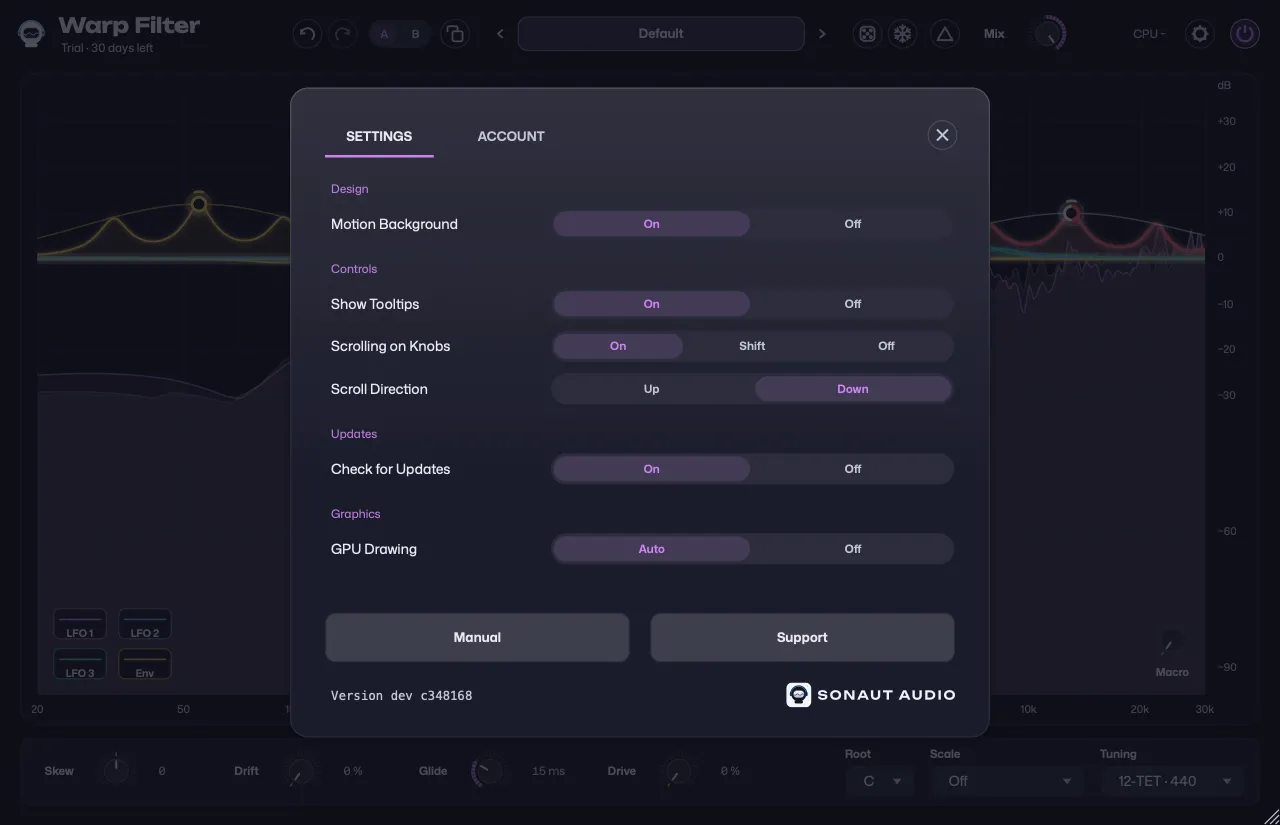
The gear at the header’s right end, left of Power, opens Settings over the whole window, in two tabs, SETTINGS and ACCOUNT. Its close button at the top right, or a click outside it, closes it.
| Row | What it does |
|---|---|
| Motion Background | On keeps the background behind the controls moving; Off holds it still. GPU Drawing Off holds it still too, and so does Reduce motion in the system’s Accessibility settings on a Mac, and a computer without a graphics driver (a virtual machine, a remote desktop) on Windows and Linux. |
| Show Tooltips | On shows each control’s tooltip when you rest the pointer on it; Off hides them. |
| Scrolling on Knobs | Whether the wheel or a trackpad swipe moves a knob: On always, Shift only with Shift held, Off never. |
| Scroll Direction | Up raises a knob when you scroll up, Down when you scroll down. Down is the default. |
| Check for Updates | On has Warp Filter ask the Sonaut Audio website for its newest version once a day while its window is open and, when there is a newer one than yours, show Version 1.3.0 available, a link to its download page, beside the version at the bottom of Settings and, once Warp Filter is activated, under its name, where the trial’s line stands until then. The request carries the plugin’s slug and the usual User-Agent, and nothing else, and when it fails nothing shows. Off asks nothing and shows nothing. On by default; Linux has no such row, since Warp Filter never asks there. |
| GPU Drawing | Auto lets the graphics card draw the moving background and the display. Off has the CPU draw them instead, which costs more CPU, and the background becomes a still color. On Windows the system keeps drawing the controls as it always does. Off takes effect at once, Auto the next time you open the window. If your DAW crashed as a window opened on the graphics card, the next one opens as under Off, a line under the row saying why, until Warp Filter, the graphics driver or the system is updated. |
Motion Background, Show Tooltips, Scrolling on Knobs, Scroll Direction and Check for Updates are the company’s: every Sonaut Audio plugin reads the same choices, so one made in another plugin holds here too. GPU Drawing is Warp Filter’s alone, on this computer.
Settings holds no window size: drag the window’s bottom-right corner to size it. It keeps its proportions, from half its 100 % size up to what your screen holds, with no steps between. Your project keeps the size of each Warp Filter window, and a new Warp Filter opens at the size you last gave one, 100 % until you size one. Where your screen cannot hold a window’s size, it opens as large as fits, with the gear and the resize corner on screen; the size itself stays, so a bigger screen, or a move to where there is room, gives it in full again. Moved to a screen of another display scale, it keeps its size, as large as that screen holds. At 50 % the smallest labels are hard to read without leaning in. Settings keeps its text readable at every size: where the window cannot hold it, its card fills the window and scrolls, its tabs with its rows, with the wheel or its scroll bar, and Tab brings each control into view.
ACCOUNT is where Warp Filter is activated, with your email address and license key, and where the trial’s line takes you once the trial has ended. Manual opens this manual in your browser, Support starts an email to support, and the Warp Filter version stands at the bottom, beside the Sonaut Audio logo, with Version 1.3.0 available after it once a newer version is out and Check for Updates is on: a link to Warp Filter’s download page, which the header shows under the name too once Warp Filter is activated.
Trial
Without a key, Warp Filter is a free 30-day trial of the full plugin, with no account. The 30 days start the first time you use it: the first time its window opens or audio runs through it (a DAW scanning its plugins does not count). The header counts the days down, and nothing else interrupts you; License shows its lines.
When the trial ends, Warp Filter stays in your projects and passes the signal through unchanged: nothing is processed, and everything stays editable. Power shows as off and is locked, the display pauses and dims as it does with Power off, and the header’s line, Trial ended · Enter key, turns into a button in the accent color that opens the gear’s Account tab. Once you enter your key, Power and the display are as they were.
While your computer’s clock is more than an hour behind the latest time the plugin has seen, the trial counts as ended until the clock catches up with that time, and the Account tab asks you to check the clock. The plugin cannot tell a clock set back from one that once ran ahead, so a clock that ran ahead costs the days it skipped, and the rest of the trial if it ran past the trial’s end. Setting the clock back never gives a day back. On a clock set before 1 September 2026 the trial does not start; the 30 days start with the first use once the clock is right. The trial is stored with the plugin’s settings, so updates and reinstalls keep it. A license key ends the trial for good.
Activation
Warp Filter activates offline, under the gear’s Account tab, with your email address and license key: License has the steps and what the plugin shows before and after.
Requirements
CLAP and VST3, and AU on macOS, with zero added latency. Install lists the systems it runs on.